Site Background Gradientify – Joomla Plugin

Documentations
Introduction
Plugin Version: 1.0.0 - last updated version
Site Background Gradientify - Joomla Plugin

Site Background Gradientify – an awesome Joomla System Plugin! that shows beautiful Page Background with Gradient effect at you Joomla site. You can set different designs for different pages. Page selection condition is also available. We introduce the front end class selection from the back end. You can add different gradient on different classes. The configuration is very simple – Just install the Plugin, Enable it and choose options and save the Plugin.

Documentations
Installation

This Plugin installation is same as you install other Joomla extensions. Please follow the steps below – 

  • Login to Joomla Administrator Panel
  • From top bar menu, go to Extensions → Manage
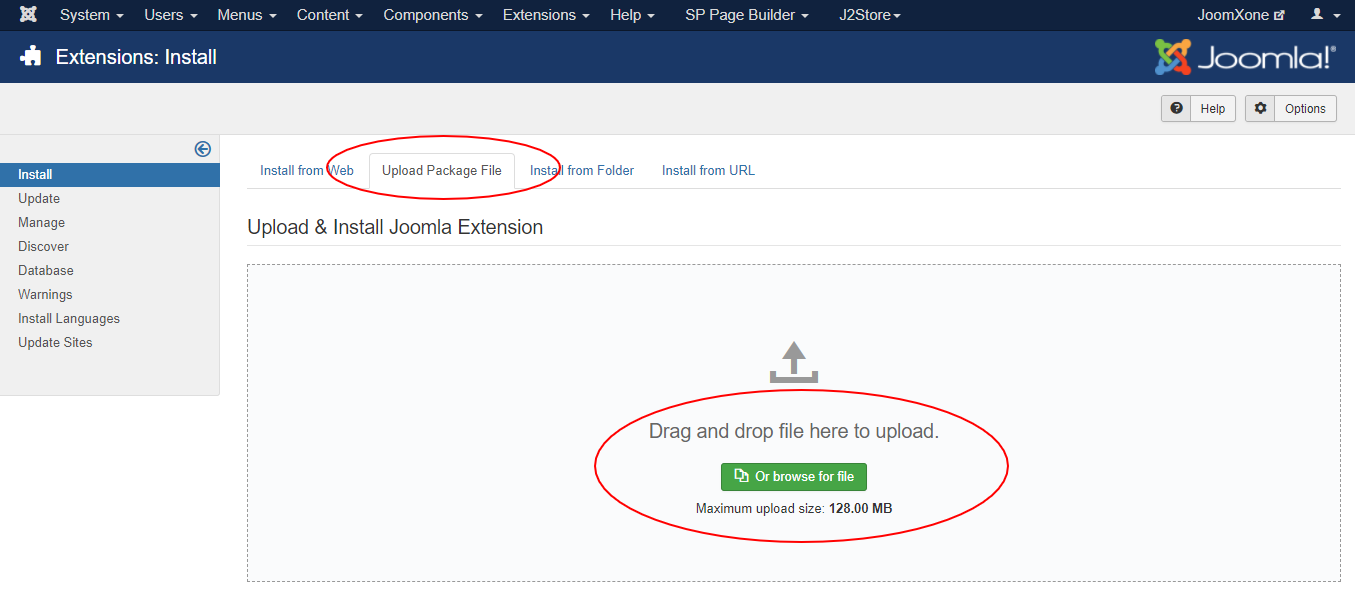
  • Select Upload Package File tab. Now drag and drop the extension zip file. OR you can browse the zip file and upload. That’s it
  • When uploading is done, you will see the success message of the installation. Now you can enable the module from Plugin manager and configure it.
Documentations
Configuration

Plugin Configuration Process:

  • Go to Extensions → Plugins (Plugin Manager) in Joomla.
  • Open the plugin and enable it first.
  • Review all available plugin configuration options and adjust them as needed.

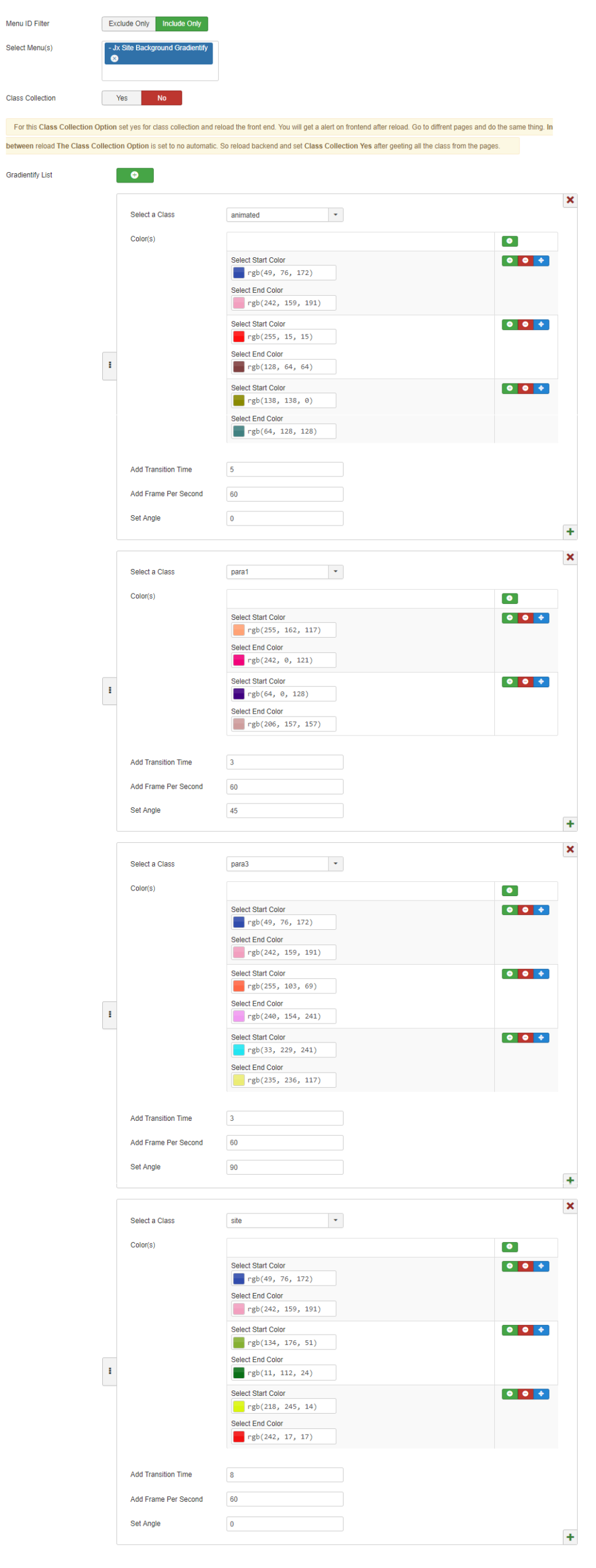
Menu ID Filter:

  • Option to include or exclude specific menu items
  • Allows applying gradients only to selected pages

Class Collection Toggle:

  • Enable/Disable automatic frontend class collection
  • Helps detect and assign CSS classes dynamically

Gradient List Section:

  • Add multiple gradient configurations using a “+” button
  • Each block represents a separate gradient setup

Class-Based Gradient Assignment:

  • Dropdown to select a specific CSS class (e.g., animated, para1, para3, site)
  • Apply unique gradient styles per class

Color Configuration:

  • Multiple gradient color pairs (Start Color → End Color)
  • Supports multiple layered gradients per class
  • Easy color pickers with RGB values

Add / Remove / Reorder Options:

  • Buttons to enable/disable, delete, or rearrange gradient sets

Animation & Control Settings:

  • Transition Time (controls animation speed)
  • Frames Per Second (smoothness of animation)
  • Gradient Angle (direction of gradient flow)
Documentations
Video Documentation

Check the following video documentation of a wide overview of configuration of the plugin.

Documentations
Frontend Mockup

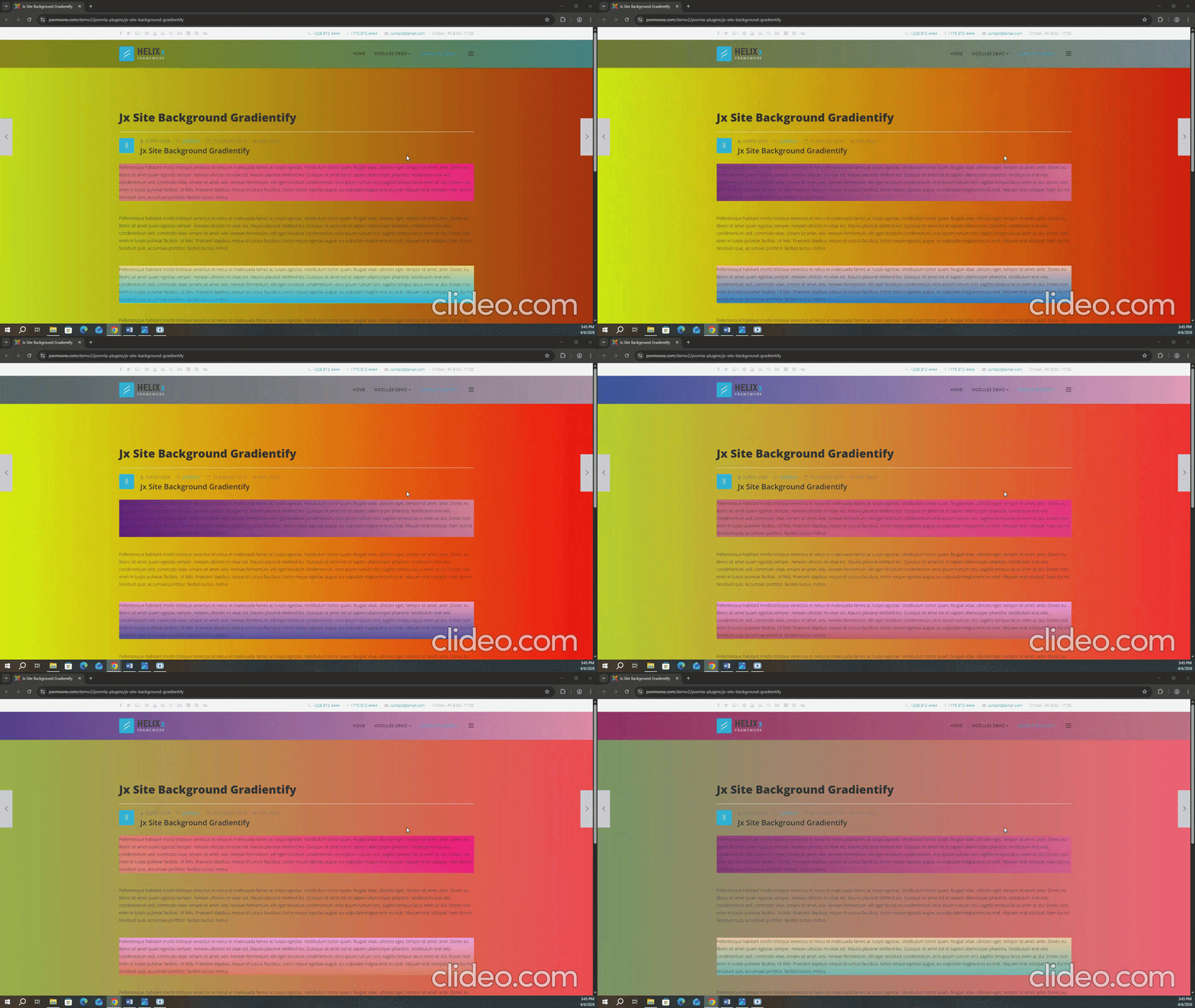
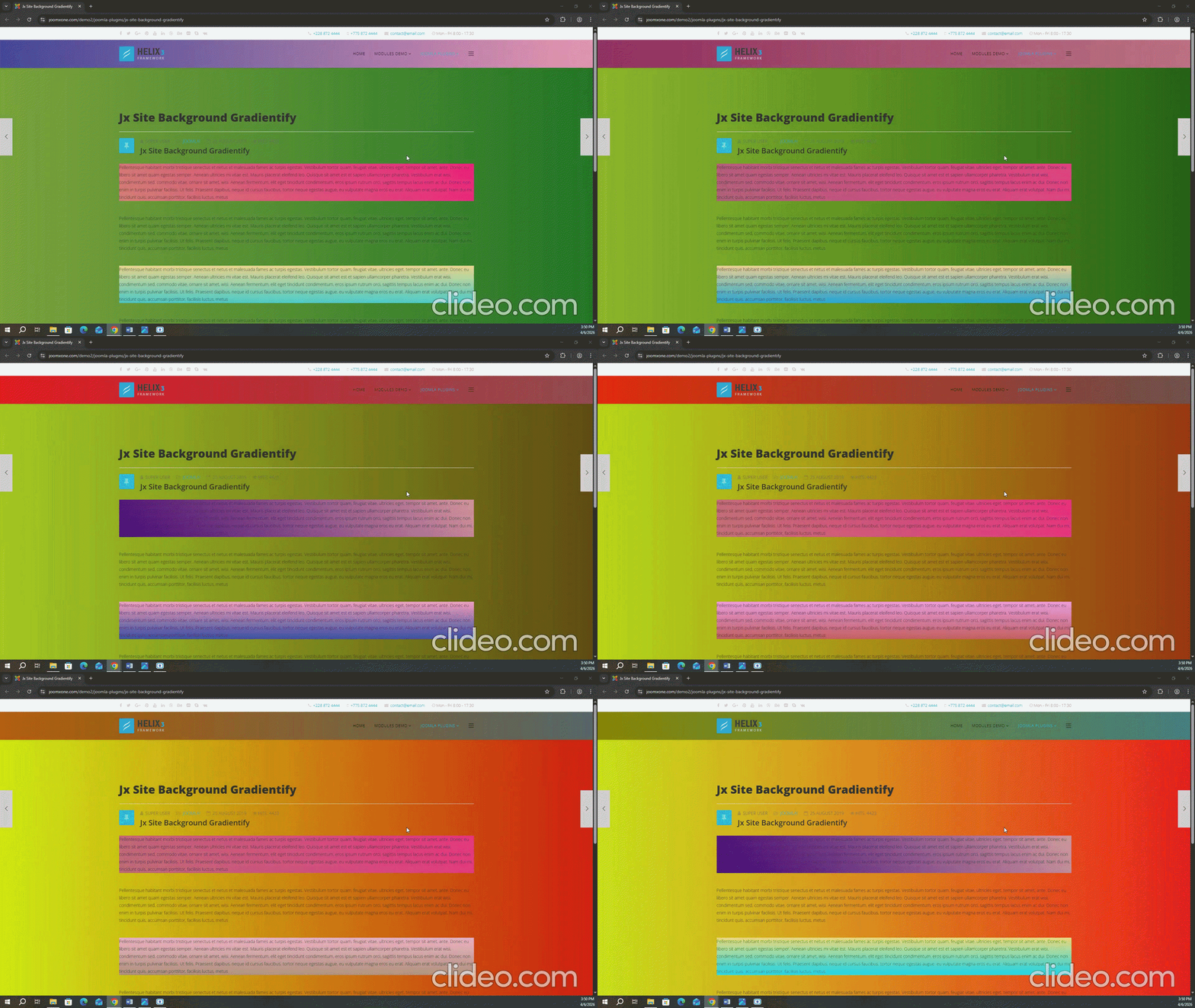
Check out the GIF below. There are two sample GIFs, each of which can have its color, timing, and specific sections controlled through the backend options-

Documentations
Download and Support

Download this Module by going to the extension product page. You will find more details about this module. Please click on Download button below to go to the download page. and Click on Support Button below to navigate to our Support Forum

Shortcode Based Material Tables

Documentations
Introduction
Plugin Version: 1.1.1 - last updated version
Shortcode Based Material Tables

This is an Amazing Joomla Content Plugin that displays table in a beautiful way in Joomla article and k2 items. A simple shortcode {mstyletable} will change the view of the table. Inside the article make a table, you can use joomla editor or hard code the table, and right before <table> tag just put the shortcode in the article in toggle mode. It will give you an amazing view of material table.

Documentations
Installation

This Plugin installation is same as you install other Joomla extensions. Please follow the steps below – 

  • Login to Joomla Administrator Panel
  • From top bar menu, go to Extensions → Manage
  • Select Upload Package File tab. Now drag and drop the extension zip file. OR you can browse the zip file and upload. That’s it
  • When uploading is done, you will see the success message of the installation. Now you can enable the module from Plugin manager and configure it.
Documentations
Configuration
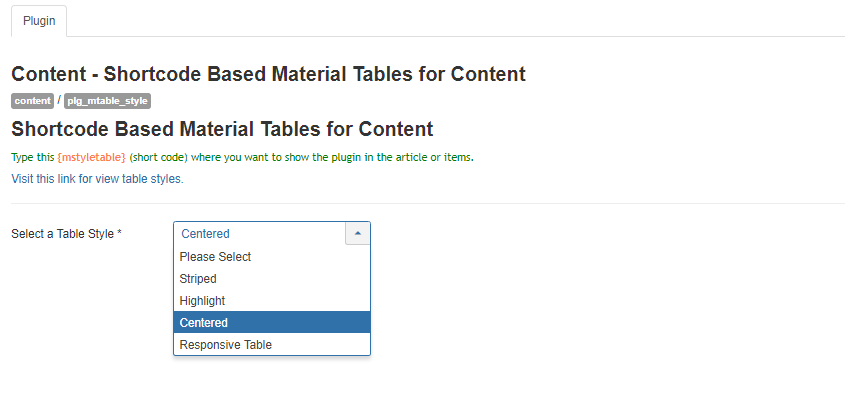
Plugin Configuration & Shortcode Usage:
  • Navigate to Extensions → Plugins (Plugin Manager) in Joomla
  • Open the plugin and enable it
  • Review and configure all available plugin options as needed
  • Insert the shortcode {mstyletable} in your article or item where you want the table to appear
  • Choose from 4 pre-designed layout variations
  • Enjoy clean, modern layouts inspired by Material Design principles
  • Apply designs instantly using the shortcode
Additional Highlights:
  • Fully compatible with Joomla Native Articles and K2 Items
  • Lightweight, efficient, and clean-coded for better performance
  • Responsive layout ensures proper display on all devices
  • Note: Table design customization is not available in the free version
Documentations
Video Documentation

Check the following video documentation of a wide overview of configuration of the plugin.

Documentations
Frontend Mockup

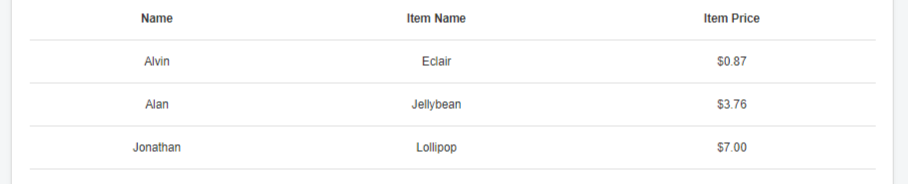
Please review the screenshot below. It showcases two pre-designed table layout options. You can customize them in four different ways-

Documentations
Download and Support

Download this Module by going to the extension product page. You will find more details about this module. Please click on Download button below to go to the download page. and Click on Support Button below to navigate to our Support Forum

Secured PDF Viewer – Plugin

Home » Documentation

Archives: Documentation

Plugin Version: 2.5.0 - last updated version
Secured PDF Viewer - Joomla Plugin

This is an amazing content Plugin works with a shortcode. you can place as many PDFs as you can to your Joomla Articles and K2 Items. It supports both Joomla native articles and K2 component items. Just install the plugin and enable it, then put the PDF URL with the shortcode to Joomla articles or k2 items whatever you choose(Shortcode example is given at plugin backend and FAQ section of this page). It’s better if you put the shortcode in the toggle mode of the editor.  Please check out the demo link given below.

Supported Components: It supports Joomla Default Articles and Com K2 Items

This Plugin installation is same as you install other Joomla extensions. Please follow the steps below – 

  • Login to Joomla Administrator Panel
  • From top bar menu, go to Extensions → Manage
  • Select Upload Package File tab. Now drag and drop the extension zip file. OR you can browse the zip file and upload. That’s it
  • When uploading is done, you will see the success message of the installation. Now you can enable the plugin from Plugin manager and configure it.
The whole configuration process has two parts – 
  1. Configure the Plugin
  2. Configure the Short-code and Disply PDF document
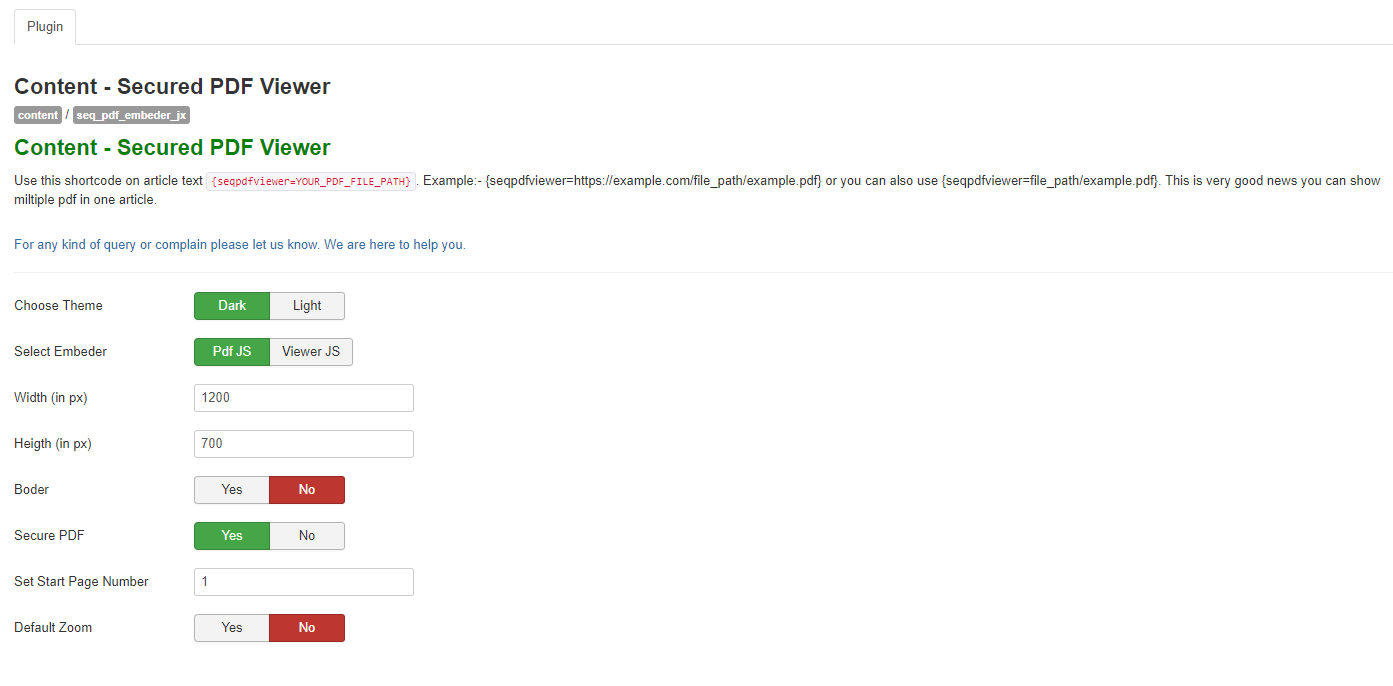
Let’s start form the beggining – Plugin Configuration Just to inform you, the plugin is congifured by default, But you need to be introduced about all plugin options. please check the list below and see the attached image[Image-1].
  • From Plugin manager(Manage → Plugins) please open the Plugin and enable first.
  • You can see so many plugin options. Please check all the options
  • You can choose any of the PDF disply themes (Dark/Light)
  • The Plugin has PDF viewer options (PdfJs/ViewerJs). You can choose any of them
  • PDF display size control (Width, Height) and style
  • Secure PDF option (enable/disable downloading PDF)
  • Start Page number and default Zoom options
Display PDF by Short-code
  • The short-code works only at Joomla Default Article and K2 Items so you can choose any of the component.
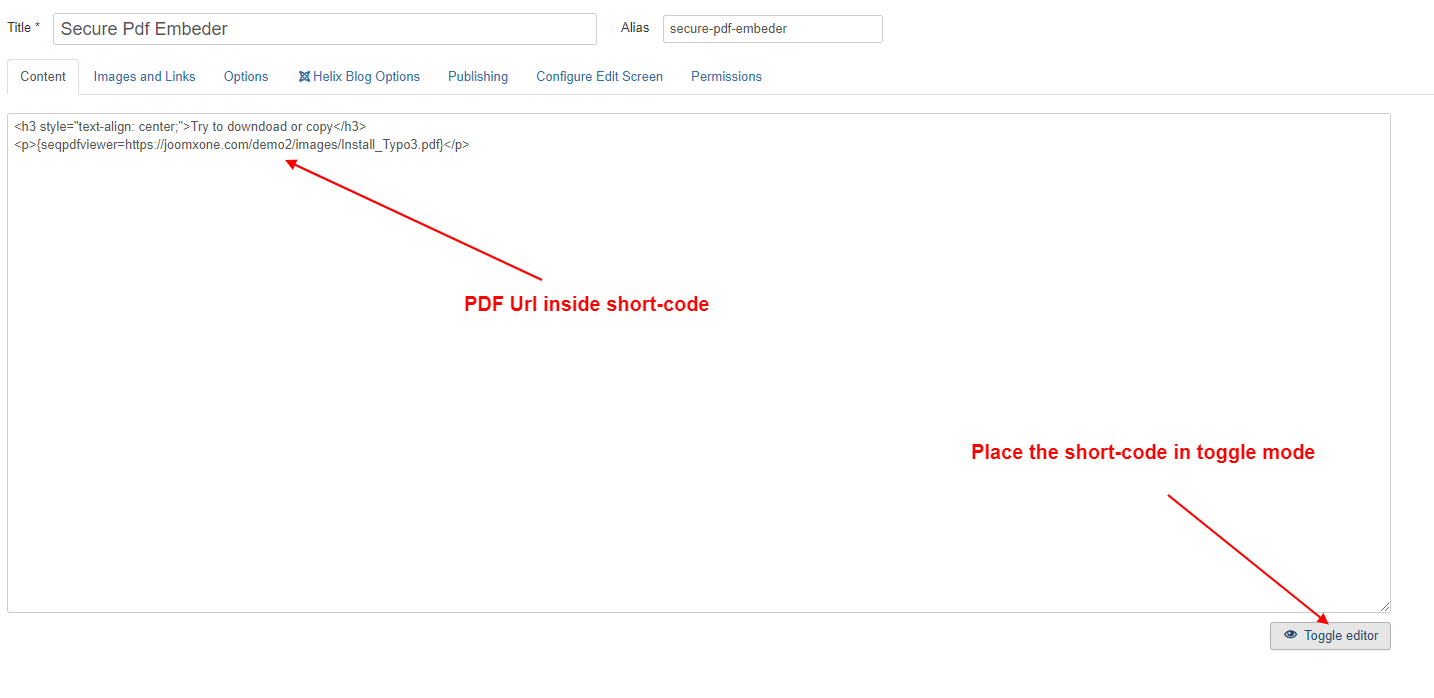
  • Please copy the following short-code and paste anywhere into Joomla Article/ K2 items in toggle mode.
{seqpdfviewer=https://example.com/file_path/example.pdf}
{seqpdfviewer=file_path/example.pdf}
  • Inside the short-code you can set you PDF Url. The URL can be absulote path or relative path of the same site where you are using the plugin. Best practise is if you upload the PDF at your own site and use full/absulote path. Check the image below. [Image-2]
  • And don’t forget to enable Secured option at plugin back end.
  • After placing the short-code save the article/item and check at the front end
  • Please remember, the pligin might not work properly integration with any thirt-party extension like any Page Builder.
  • If you need support, feel free to knock us

Check the following video documentation of a wide overview of configuration of the plugin.

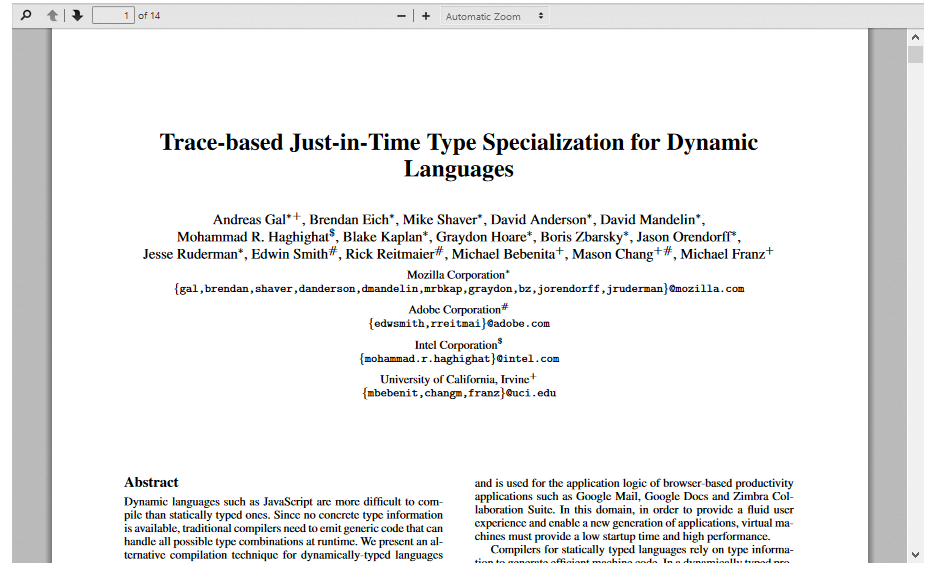
Please check the following screenshot. The PDF document will be displaying like this –

Download this Plugin by going to the extension product page. You will find more details about this plugin. Please click on Download button below to go to the download page. and Click on Support Button below to navigate to our Support Forum

Jx YouTube Channel Viewer – Joomla Module

Documentations
Introduction
Plugin Version: 1.0.0 - last updated version
Jx YouTube Channel Viewer - Joomla Module

This is an Amazing Joomla Module that displays YouTube channel Videos at Joomla website. This module is very light-weight and clean coded. It uses Google API key to pull YouTube videos using YouTube data API. The configuration of this module is very simple – You just need YouTube channel ID and Google API Key. “Even No API Key needed” to run this module. A test key is given there by default, you can use that too. The module has 4 different layouts, all of them are customizable. You can customize the style as your own of each template/layout. The module has a customizable carousel slider too. You can gallery YouTube videos in a carousel slider. Along all of these, It has much more features at module back-end.
Supported Components: Joomla Native Articles & K2 Items

Installation

This Module installation is same as you install other Joomla extensions. Please follow the steps below – 

  • Login to Joomla Administrator Panel
  • From top bar menu, go to Extensions → Manage
  • Select Upload Package File tab. Now drag and drop the extension zip file. OR you can browse the zip file and upload. That’s it
  • When uploading is done, you will see the success message of the installation. Now you can enable the module from Plugin manager and configure it.
Configuration

Here is the simple steps to configure:

  • Install and publish the module to any module position.
  • Set Google API Key: A test Google API key is given there. You can choose that.
  • However, we recomand to use your own API key.
  • Set YouTube channel ID: The YouTube channel, from where you want to show the videos.
  • That’s it. Save the module and see the front-end.
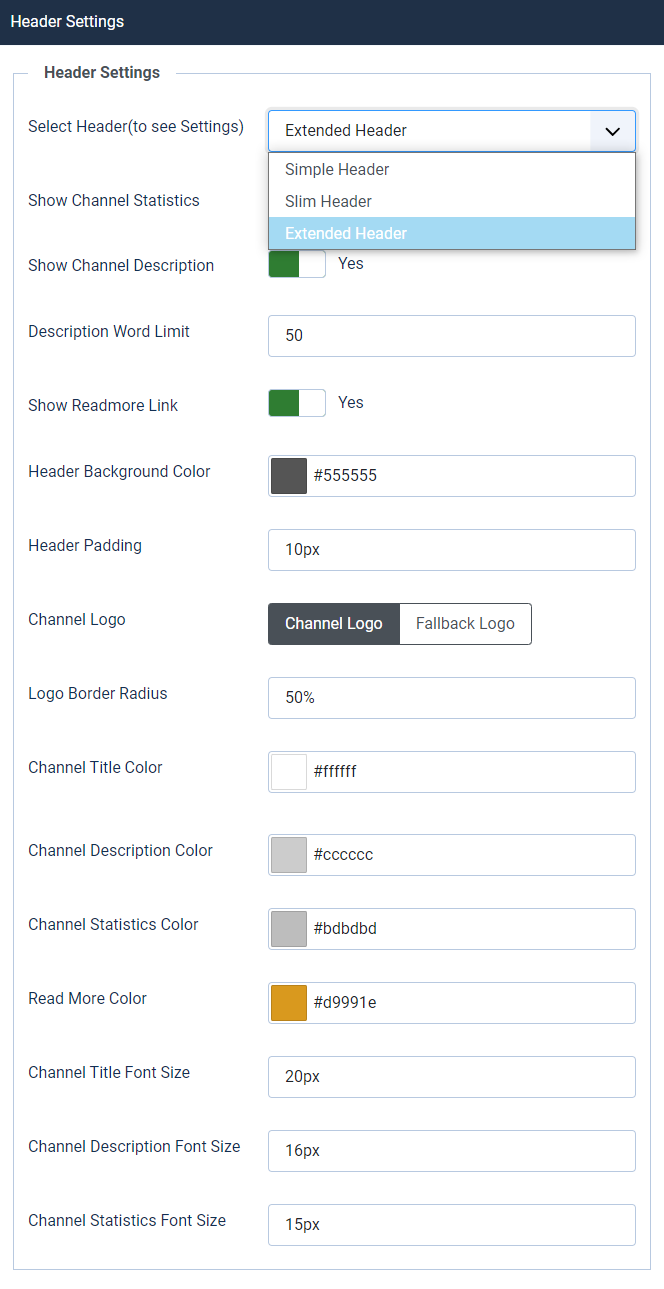
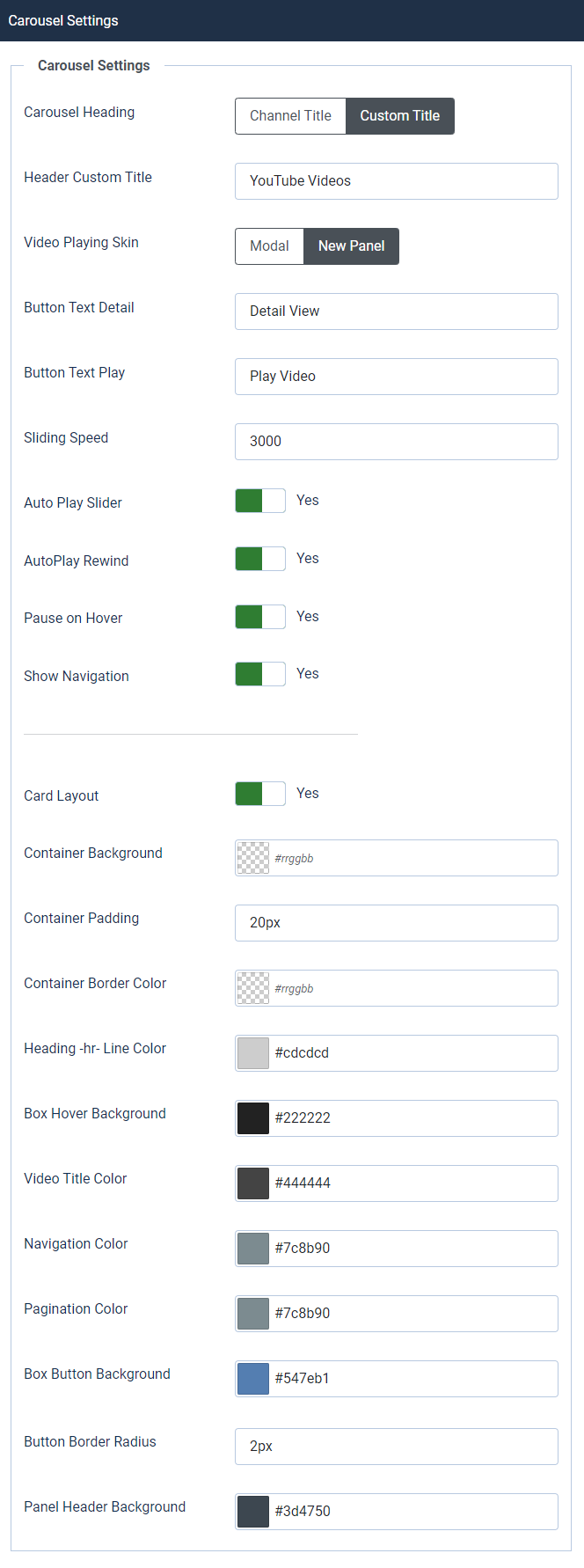
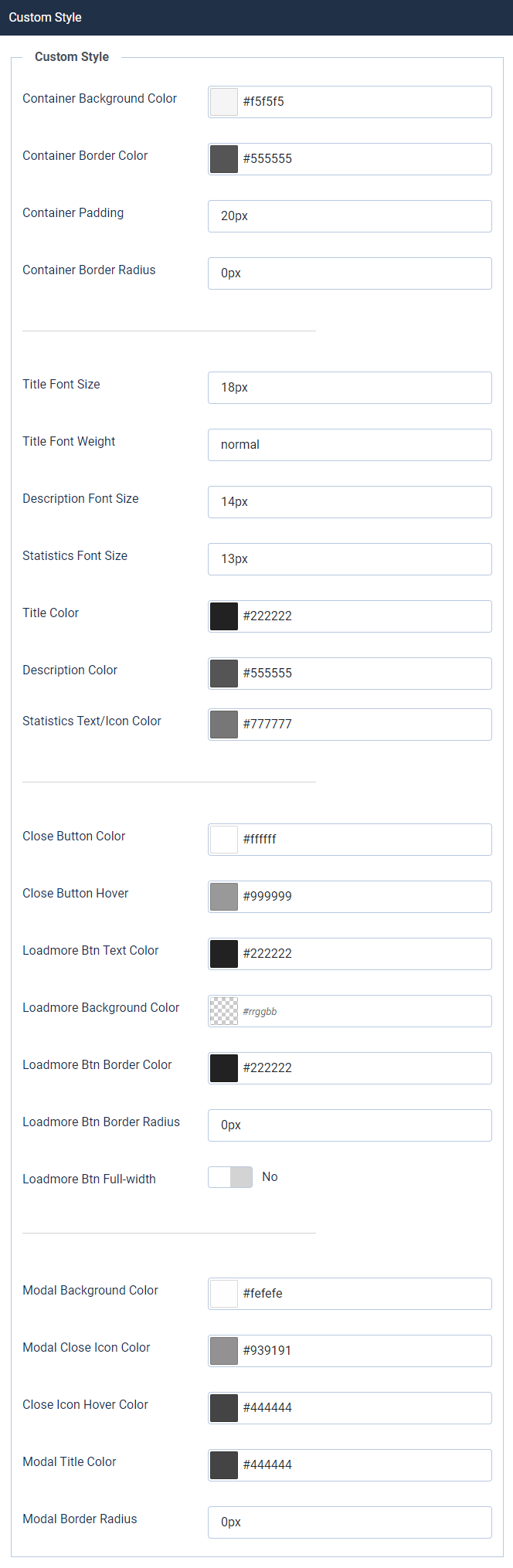
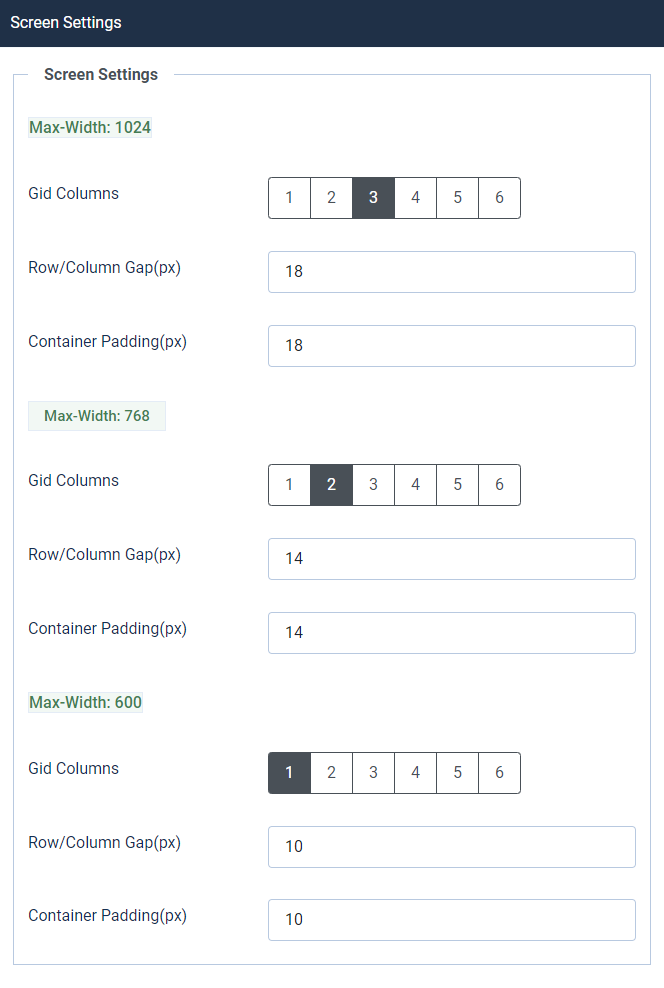
  • There are several settings and customizable styles you can check them out and use them.

Module Settingsx


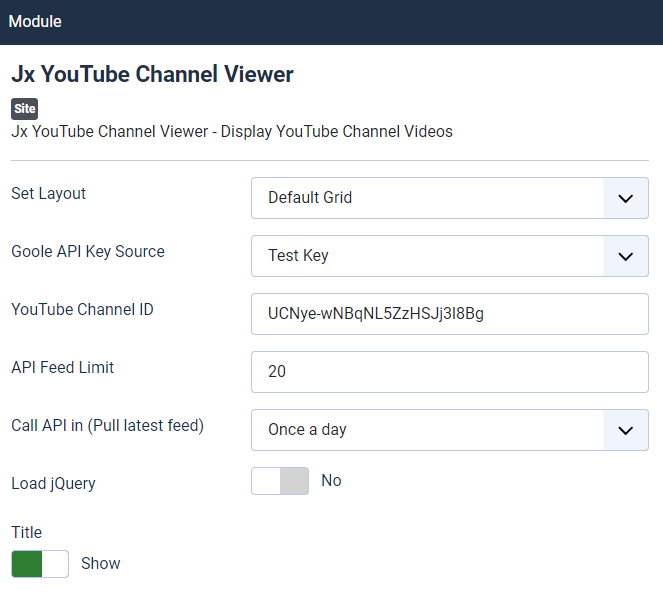
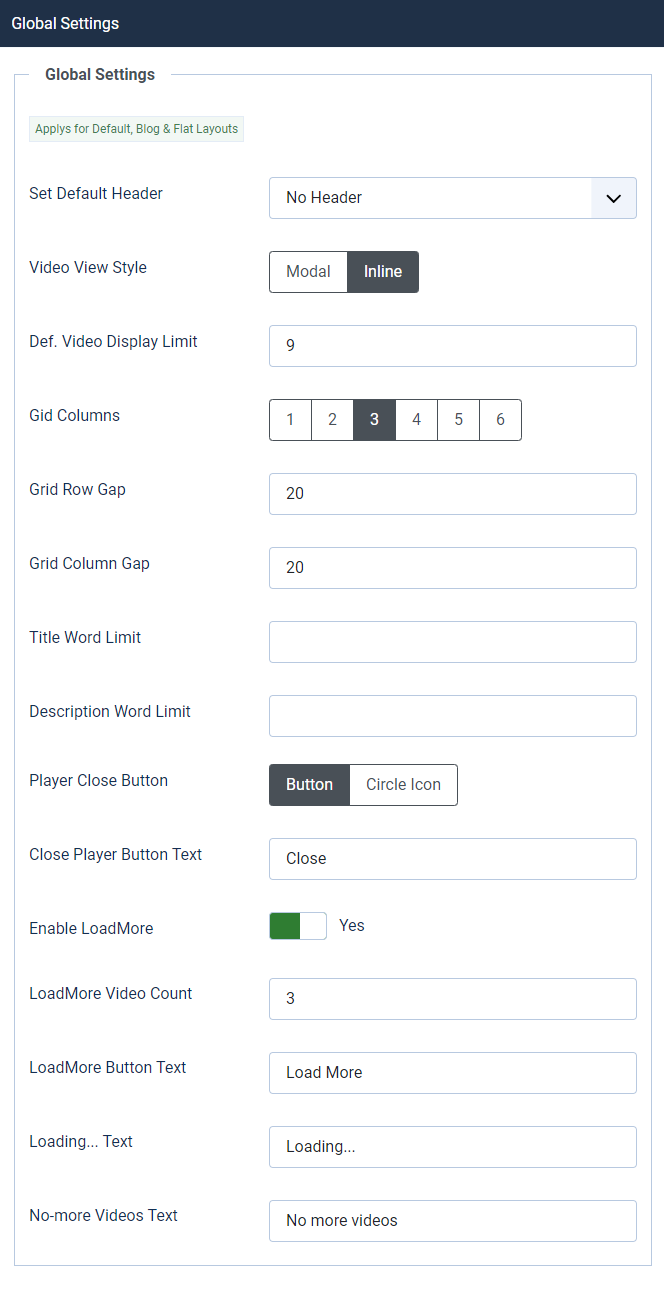
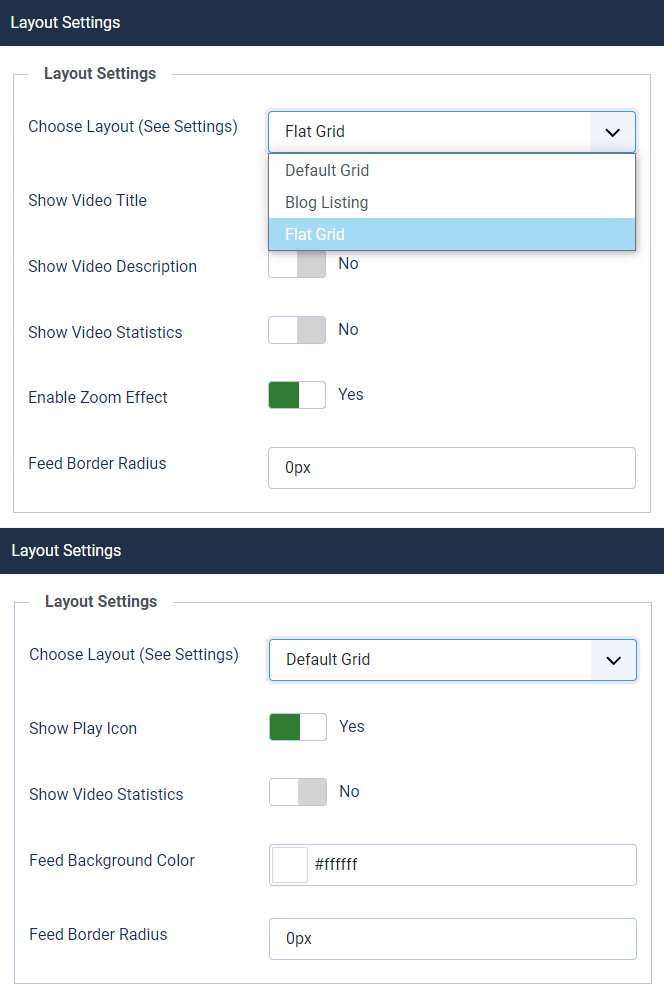
  • There are four layouts – ‘Default Grid’, ‘Blog’, ‘Flat’ & ‘Carousel’ . You can choose anyone of them.
  • A Test key is given by default. You can use that one to check the module is working on not. It’s better to create your own API Key
  • Set your YouTube Channel ID. The YouTube channel from where you want to show the videos.
  • Set API Feed Limit. How many videos shlould be pulled by API. You can set any limit, by default it’s 20.
  • Set API calling schedule. When the API should run to pull the latest videos.
  • Load jQery library: This is optional, You can turn it off if the module works fine without it.

Frontend Mockup

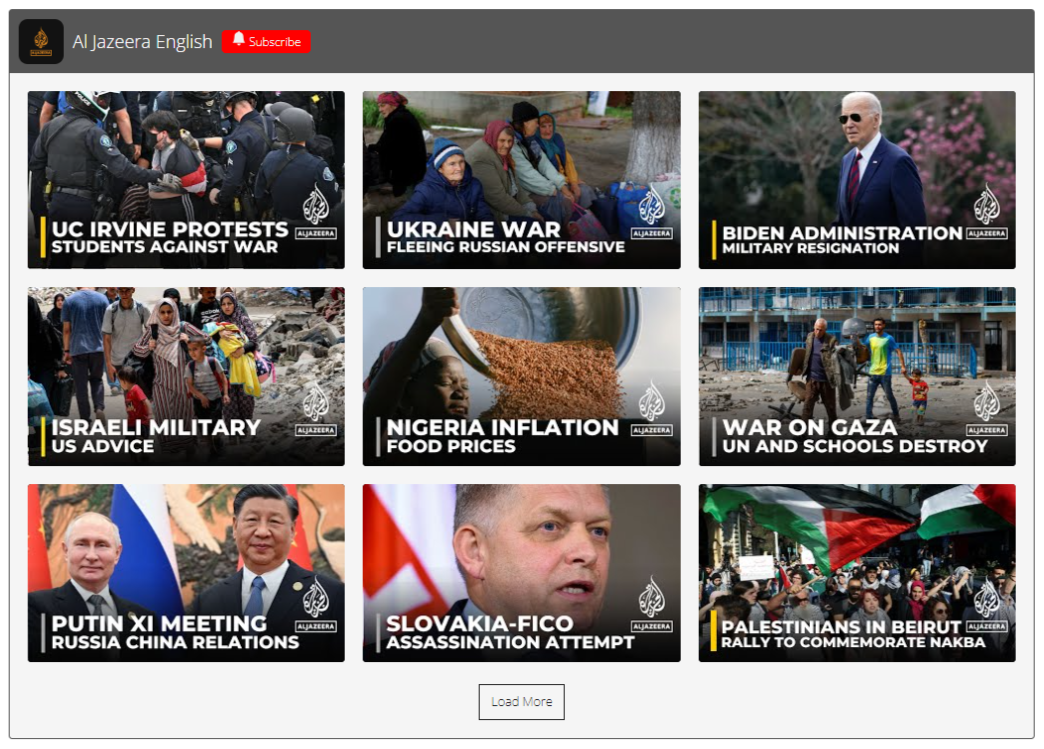
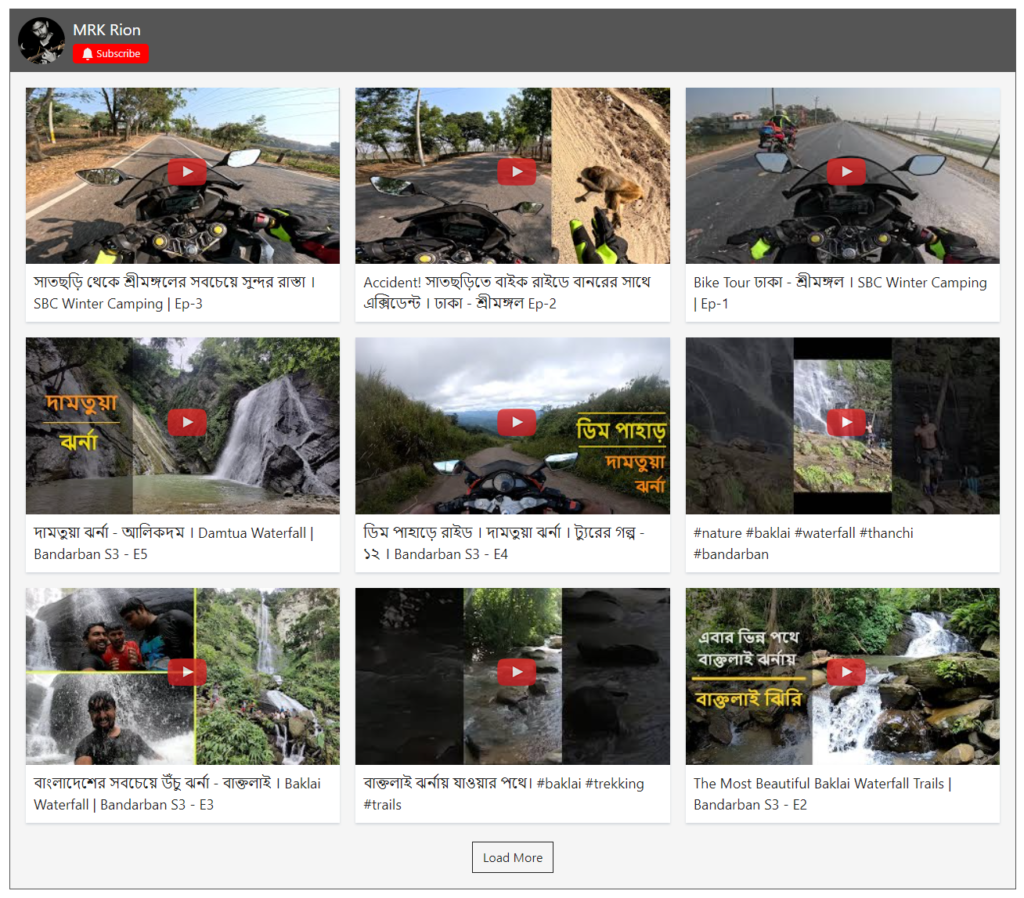
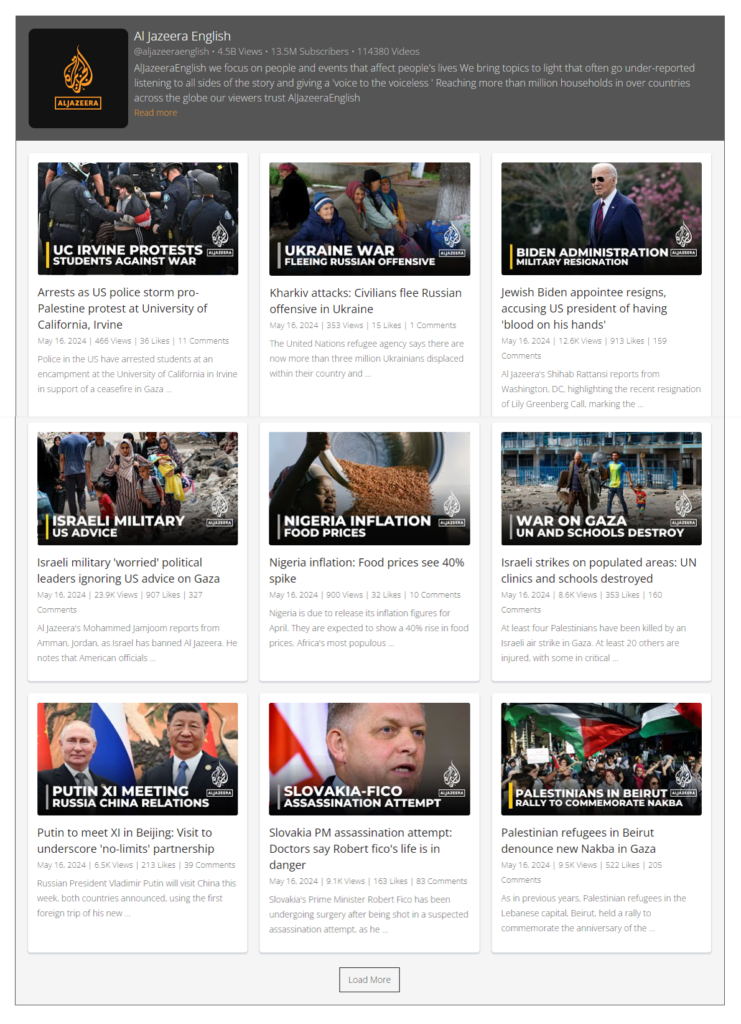
Please check the following screenshot. The YouTube Channel will be displaying like this.

Download and Support

Download this Module by going to the extension product page. You will find more details about this module. Please click on Download button below to go to the download page. and Click on Support Button below to navigate to our Support Forum

Jx Voice Search for Joomla

Documentations
Introduction
Plugin Version: 1.1.1 - last updated version
Jx Voice Search for Joomla

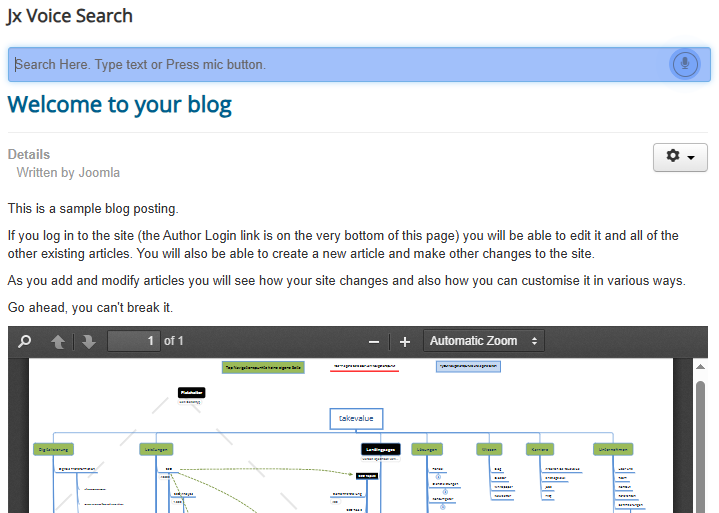
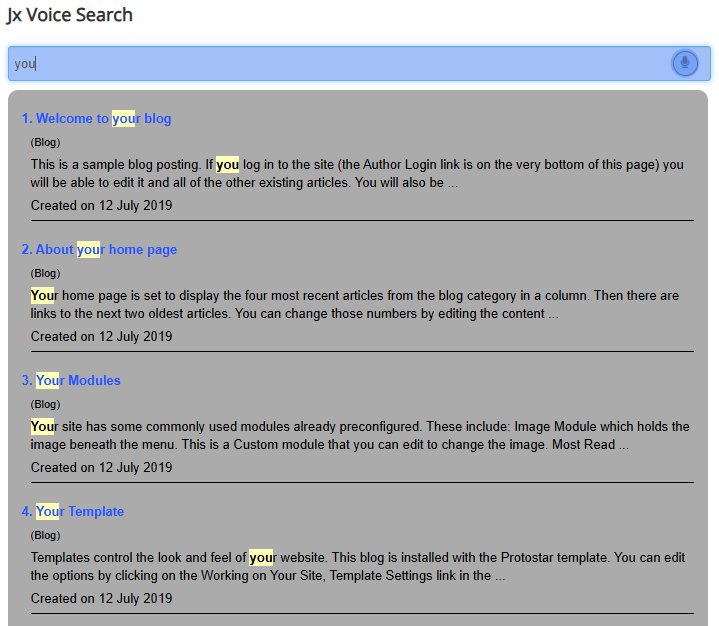
This voice search is to change your or user search experience. We do Professional Design, Real-Time Work and Performance are Much more than anything we have ever seen on a website, finding an article or product has never been easier with the search. This voice search is a search form that displays the results as you type or input voice. This is a Joomla Module that works like Google’s automated search (automated suggestion). (Make sure your device has an Internet connection and your domain has https:// ). Please try the demo.

Supported Components: It use joomla default search plugin. So it supported all type of content

Documentations
Installation

This Plugin installation is same as you install other Joomla extensions. Please follow the steps below – 

  • Login to Joomla Administrator Panel
  • From top bar menu, go to Extensions → Manage
  • Select Upload Package File tab. Now drag and drop the extension zip file. OR you can browse the zip file and upload. That’s it
  • When uploading is done, you will see the success message of the installation. Now you can enable the module from Plugin manager and configure it.
Documentations
Configuration

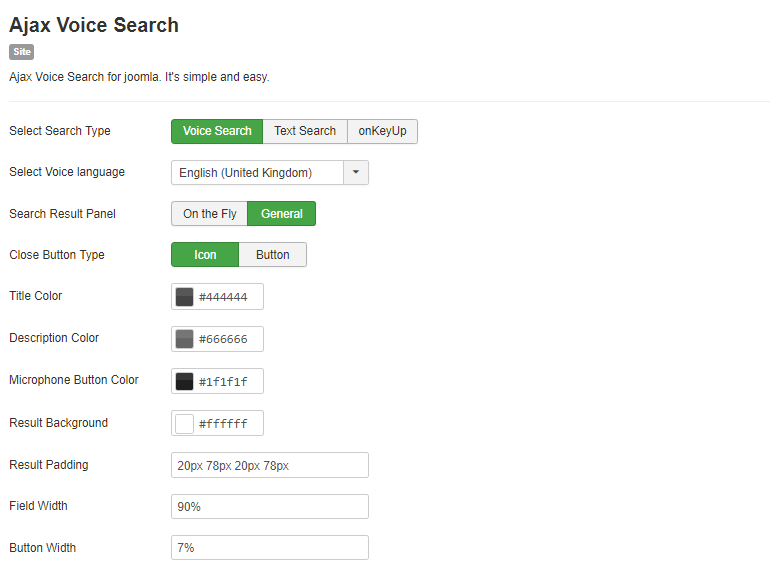
Module Configuration Process:

  • Go to Extensions → Modules (Module Manager) in Joomla.
  • Open the module and enable it.
  • Review all available configuration options and adjust them as needed.

Jx Voice Search:

  • Display documents on any page (com_content / K2 items) of your site.
  • This is a shortcode-based Joomla plugin—place the shortcode anywhere in your article or K2 item.
  • Shortcode format: {jxdocembed=YOUR_FILE_PATH_HERE}
  • Display multiple documents on a single page using the shortcode.
  • Set custom width and height from the plugin backend options.
  • Enable or disable border settings.
  • Show or hide the download button, allowing users to download documents.
  • Choose custom button classes for styling.
Documentations
Video Documentation

Check the following video documentation of a wide overview of configuration of the plugin.

Documentations
Frontend Mockup
Documentations
Download and Support

Download this Module by going to the extension product page. You will find more details about this module. Please click on Download button below to go to the download page. and Click on Support Button below to navigate to our Support Forum

Jx Site Preloader for Joomla

Documentations
Introduction
Plugin Version: 1.1.1 - last updated version
Jx Site Preloader for Joomla
It’s a loading effect for the site page loading. When the internet connection is slow the css is not loading properly this plugin help. An Awesome Joomla System Plugin! That shows several Loading effects at your Joomla site while loading/visiting the site. It has the loader display positions and several theme options in the plugin back end. You can also customize the color and size of the loader from the plugin back end. It has control options were to show the loader as well. The configuration is very simple – Just install the Plugin, Enable it and choose options and save the Plugin.
Documentations
Installation

This Plugin installation is same as you install other Joomla extensions. Please follow the steps below – 

  • Login to Joomla Administrator Panel
  • From top bar menu, go to Extensions → Manage
  • Select Upload Package File tab. Now drag and drop the extension zip file. OR you can browse the zip file and upload. That’s it
  • When uploading is done, you will see the success message of the installation. Now you can enable the module from Plugin manager and configure it.
Documentations
Configuration

Plugin Configuration Process:

  • Go to Extensions → Plugins (Plugin Manager) in Joomla
  • Open the plugin and enable it first
  • Review all available plugin configuration options and adjust as needed
  • Apply the plugin:
    • To all menu pages (global)
    • Or to a specific menu item only
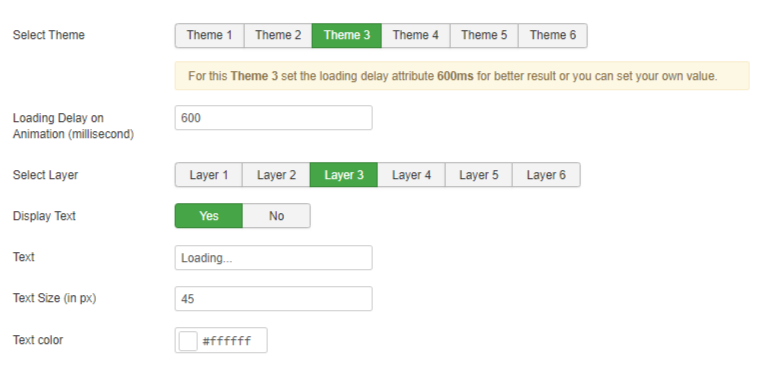
  • Choose from 6 predefined themes all are customizable.
  • Customize the loading time for each menu.
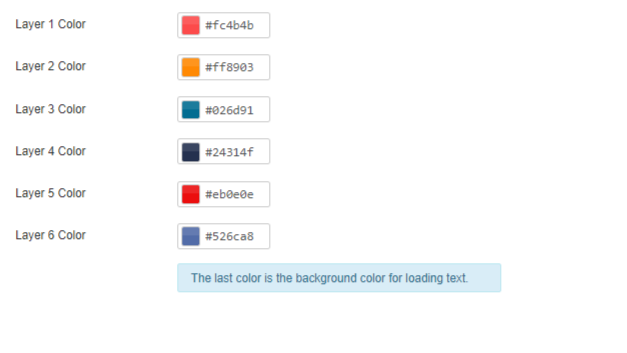
  • Fully customize each layer, including colors and design elements, to match your website style.
  • Modify the text displayed during page loading and also modify the text color.
  • Each theme includes multiple layers which is saw in image number two.
Documentations
Video Documentation

Check the following video documentation of a wide overview of configuration of the plugin.

Documentations
Frontend Mockup

Please check the following screenshot. The documents will be displaying like this. documents width-height can be controlled from back end options –

Documentations
Download and Support

Download this Module by going to the extension product page. You will find more details about this module. Please click on Download button below to go to the download page. and Click on Support Button below to navigate to our Support Forum

Jx Site Loader for Joomla

Documentations
Introduction
Plugin Version: 1.1.1 - last updated version
Jx Site Loader for Joomla

An Awesome Joomla System Plugin! that shows Loding effect at you Joomla site while loading/visiting the site. It has loader display position options in the plugin back end. You can also customize the color and size of the loader from the plugin back end. It has control options were to show the loader as well. The configuration is very simple – Just install the Plugin, Enable it and choose options and save the Plugin

Documentations
Installation

This Plugin installation is same as you install other Joomla extensions. Please follow the steps below – 

  • Login to Joomla Administrator Panel
  • From top bar menu, go to Extensions → Manage
  • Select Upload Package File tab. Now drag and drop the extension zip file. OR you can browse the zip file and upload. That’s it
  • When uploading is done, you will see the success message of the installation. Now you can enable the module from Plugin manager and configure it.
Documentations
Configuration

Plugin Configuration Process:

  • Go to Extensions → Plugins (Plugin Manager) in Joomla.
  • Open the plugin and enable it first.
  • Review all available plugin configuration options and adjust them as needed.
  • Apply the plugin:
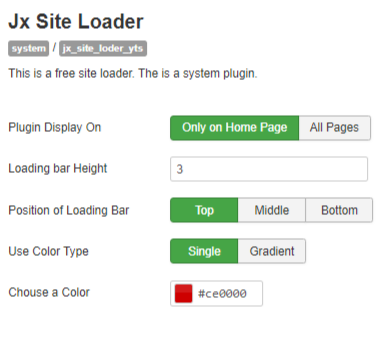
    • To all pages (global)
    • Or to a specific page only
  • You can customize the loading bar height.
  • You can also change the position of the loading bar.
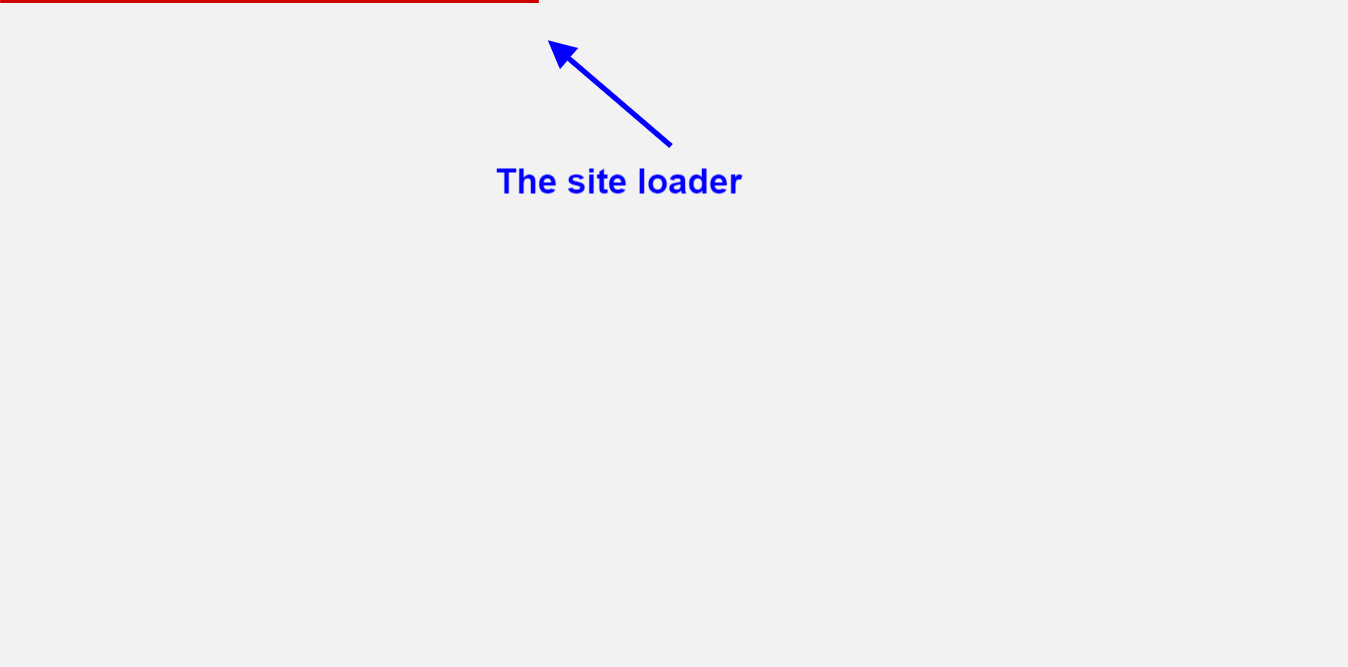
  • You can choose the color type and color, which can be seen in the image.
Documentations
Video Documentation

Check the following video documentation of a wide overview of configuration of the plugin.

Documentations
Frontend Mockup

Please check the following screenshot. The documents will be displaying like this. documents width-height can be controlled from back end options –

Documentations
Download and Support

Download this Module by going to the extension product page. You will find more details about this module. Please click on Download button below to go to the download page. and Click on Support Button below to navigate to our Support Forum

Jx Parallax Content Slider

Documentations
Introduction
Plugin Version: 1.5.0 - last updated version
Jx Parallax Content Slider

This is an Amazing Joomla Module that displays a content slider at your Joomla website/page. It can be displayed at home page or any other page and any other Module Positions. The most amazing thing is You can Display Joomla native articles in the content slider as well as if you wish to display custome information and image you can also do that.

Documentations
Installation

This Plugin installation is same as you install other Joomla extensions. Please follow the steps below – 

  • Login to Joomla Administrator Panel
  • From top bar menu, go to Extensions → Manage
  • Select Upload Package File tab. Now drag and drop the extension zip file. OR you can browse the zip file and upload. That’s it
  • When uploading is done, you will see the success message of the installation. Now you can enable the module from Plugin manager and configure it.
Documentations
Configuration

Module Configuration Process:

  • Go to Extensions → Modules (Module Manager) in Joomla.
  • Open the module and enable it.
  • Review all available configuration options and adjust them as needed.


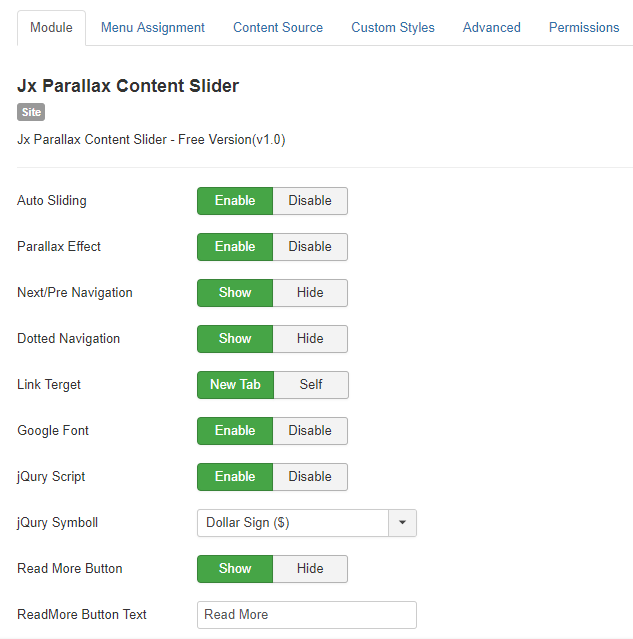
Module Settings:

  • Enable or disable auto sliding for the slider.
  • Control the parallax effect for a more dynamic visual experience.
  • Choose the navigation type and show or hide it on the slider.
  • Set how links open—either in a new tab or the same page.
  • Option to load Google Fonts for better typography.
  • Enable or disable jQuery loading as needed.
  • Show or hide the “Read More” button, and customize its text.

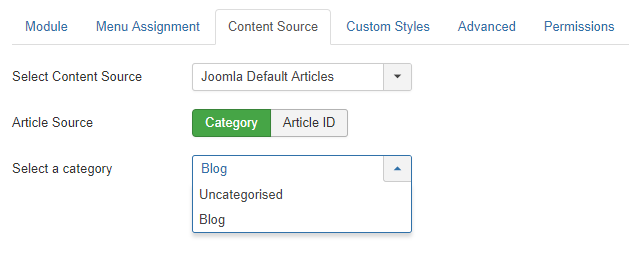
Define Dynamic Content Source:

  • Choose your content source.
  • Dynamically display content from a specific category on your slider or module

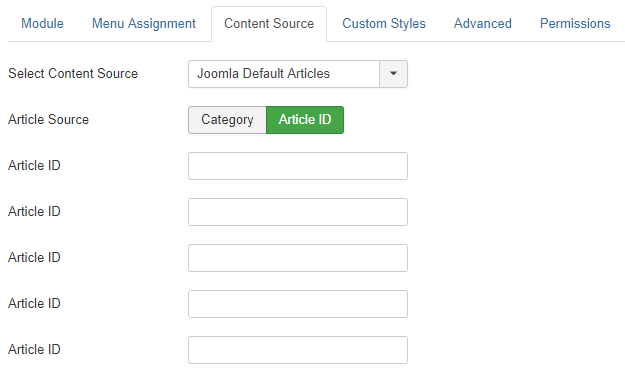
Select Manual Joomla Articles:

  • Manually choose the Joomla articles you want to display on the slider.
  • Enter the Article ID for each article; the slider will automatically use the article’s image as a thumbnail.
  • You can select up to 5 articles to display manually.

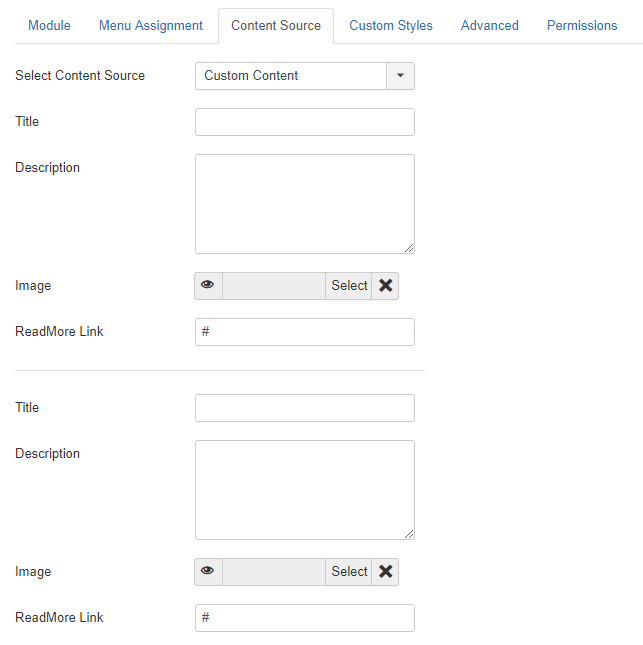
Write Your Own Content:

  • Instead of using dynamic Joomla content, you can create custom content for the slider.
  • Add a title, description, and image, along with a “Read More” link.
  • Your custom content will then be displayed directly in the slider.

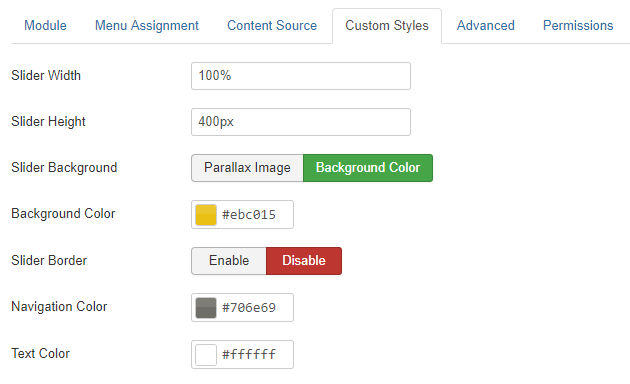
Control the Style:

  • Customize the slider’s appearance to match your website’s style.
  • Set the slider width and height.
  • Choose a parallax image or a solid background color.
  • Enable or disable the slider border.
  • Select the text and navigation colors.
Documentations
Video Documentation

Check the following video documentation of a wide overview of configuration of the plugin.

Documentations
Frontend Mockup
Documentations
Download and Support

Download this Module by going to the extension product page. You will find more details about this module. Please click on Download button below to go to the download page. and Click on Support Button below to navigate to our Support Forum

Jx Documents Viewer – Joomla Plugin

Documentations
Introduction
Plugin Version: 2.1.0 - last updated version
Jx Documents Viewer - Joomla Plugin

Jx Documents Viewer/embedder is an amazing short-code based Joomla Plugin that helps you to display/embed your documents at your Joomla site. The following plugin supports several file types – PDFExcelPowerPoint and Docx. Even you can display multiple files in a single article. The installation and configurations are too easy, even you might not need any documentation. The plugin supports both Joomla natives article and K2 items. Since this is a short-code based Joomla Plugin, You have to place the short-code anywhere in Joomla articles and K2 Items, and inside the short-code you have set your file path. The short-code is mentioned below.
Supported Components: Joomla Native Articles & K2 Items

Documentations
Installation

This Plugin installation is same as you install other Joomla extensions. Please follow the steps below – 

  • Login to Joomla Administrator Panel
  • From top bar menu, go to Extensions → Manage
  • Select Upload Package File tab. Now drag and drop the extension zip file. OR you can browse the zip file and upload. That’s it
  • When uploading is done, you will see the success message of the installation. Now you can enable the module from Plugin manager and configure it.
Documentations
Configuration

The whole configuration process has two parts – 

  1. Configure the Plugin
  2. Configure the Short-code and Disply documents

Let’s start form the beggining – Plugin Configuration
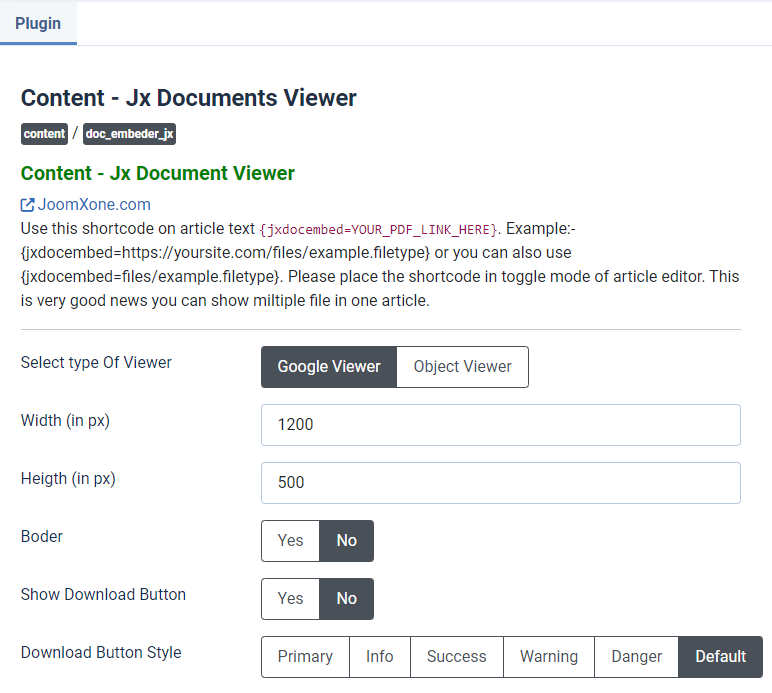
Just to inform you, the plugin is congifured by default, But you need to be introduced about all plugin options. please check the list below and see the attached image[Image-1].

  • From Plugin manager(Manage → Plugins) please open the Plugin and enable first.
  • You can see some plugin options. Please check all the options.
  • There are two different viewers – ‘Google Viewer’ & ‘Object Viewer’. You can choose anyone of them.
  • You can set custom width and height of the documents.
  • You can enable/disable download button for users.
  • Button style selection classes are available, you can choose one
  • That’s all, now you can put the shortcode at content.
Display PDF by Short-code
  • The short-code works only at Joomla Default Article and K2 Items so you can choose any of the component.
  • Please copy the following short-code and paste anywhere into Joomla Article/ K2 items in toggle mode.
 {jxdocembed=YOUR_FILE_PATH_HERE} 
 For Example,
 {jxdocembed=https://joomxone.com/images/example.docx}
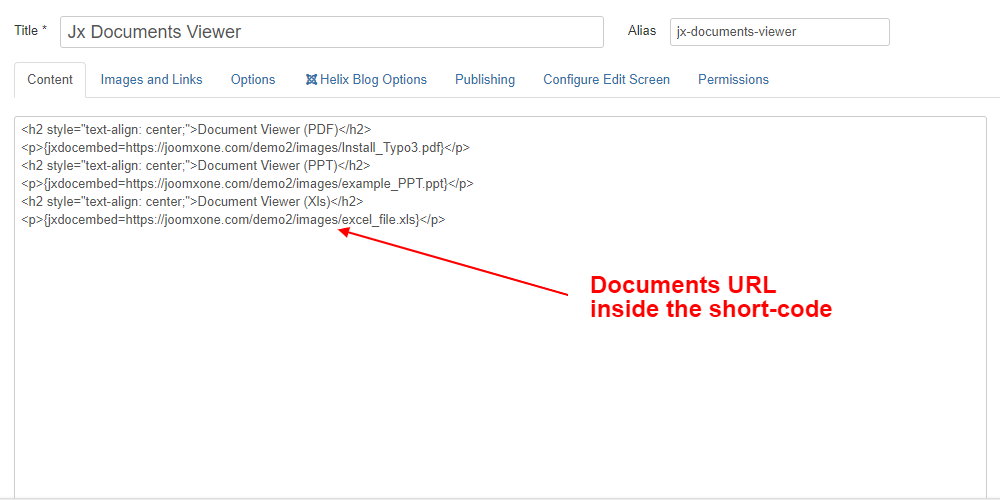
  • Inside the short-code you can set your documents Url. The URL can be absulote path or relative path of the same site where you are using the plugin. Best practise is – if you upload the PDF at your own site and use full/absulote path. Check the image below. [Image-2]
  • You can upload DOCX, XLs, PPT PDF file at your Joomla images directory and use their full path at short-code.
  • In a single article, you can display as many documents as you can. It supports multiple documents in a single page, just place the shortcodes with documets URL. But It’s better not to display much more, because it can make your site heavy.
  • Please remember, the pligin might not work properly in integration with any thirt-party extension like any Page Builder.
  • If you need support, feel free to Contact us, or post at our support forum.
Documentations
Video Documentation

Check the following video documentation of a wide overview of configuration of the plugin.

Documentations
Frontend Mockup

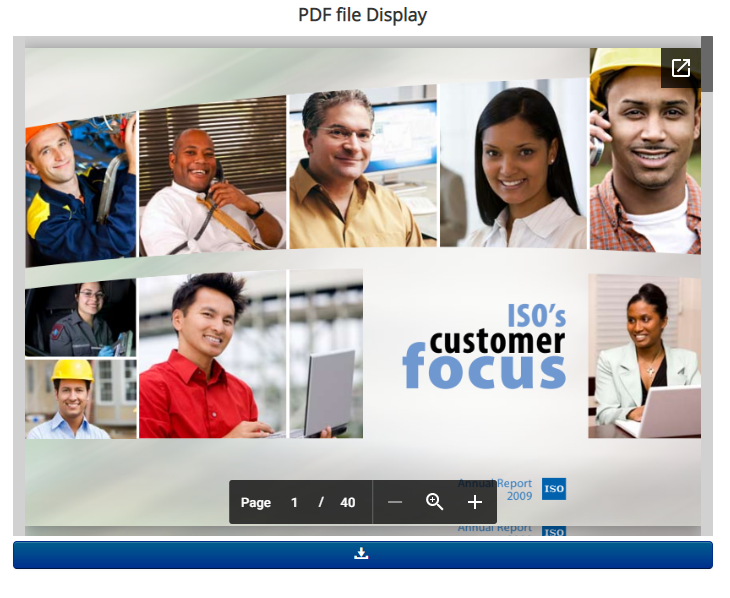
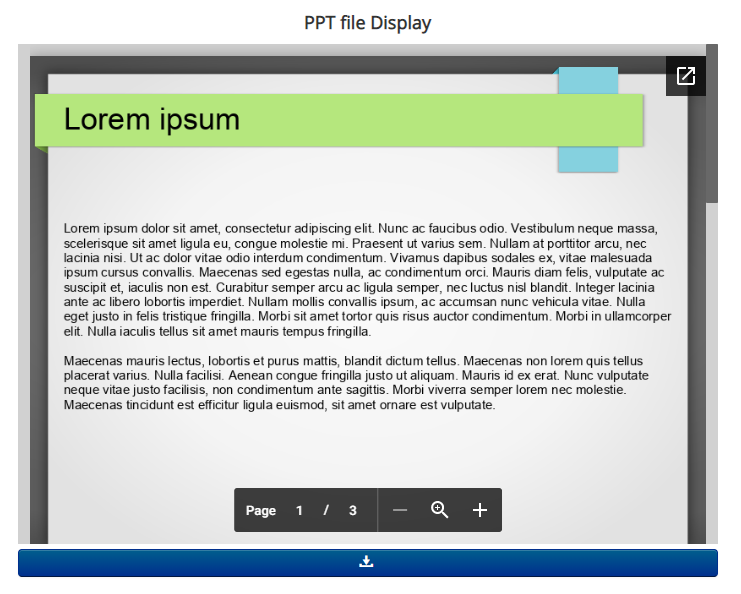
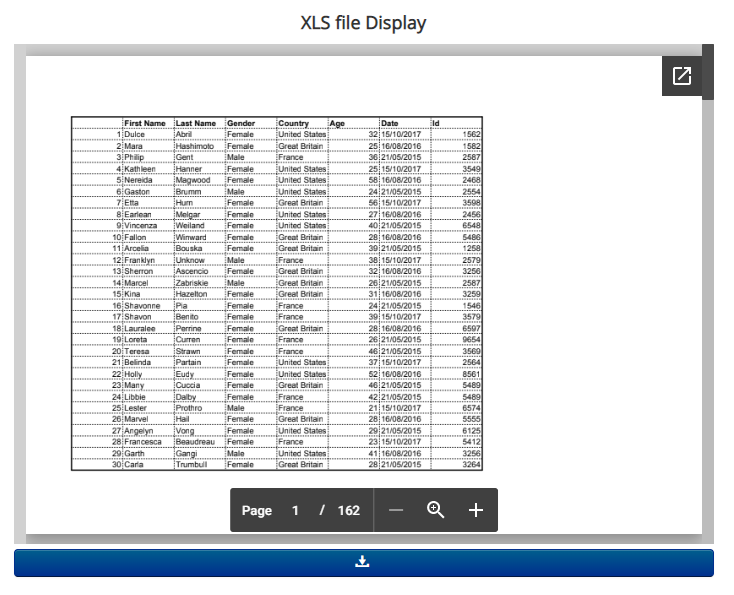
Please check the following screenshot. The documents will be displaying like this. documents width-height can be controlled from back end options –

Documentations
Download and Support

Download this Module by going to the extension product page. You will find more details about this module. Please click on Download button below to go to the download page. and Click on Support Button below to navigate to our Support Forum

Jx Brands Display Pro

Documentations
Introduction
Plugin Version: 1.1.1 - last updated version
Jx Brands Display Pro

This is a light weight premium Joomla Module can be very useful to display Brand Logos to any Joomla website. This Module is fully responsive to fit any device. There are two layouts of this module – ‘Default’ that can display the logos in grid layout. Another one is ‘Carousel’ displays the logos in a carousel slider. This is the Pro version with lot more settings/features. There is a light/free version of this extnsion too. You can check the free version. The configuration of this extension is very easy – 
  • Download the extension from this page.
  • Install it to your Joomla site.
  • From Joomla Dashboard->Module Manger, open the module and publish it to any module position.
  • Add Logos and required information.
  • You can customize the style from module settings.
  • There are lot more control & settings and features at this pro version
Documentations
Installation

This Plugin installation is same as you install other Joomla extensions. Please follow the steps below – 

  • Login to Joomla Administrator Panel
  • From top bar menu, go to Extensions → Manage
  • Select Upload Package File tab. Now drag and drop the extension zip file. OR you can browse the zip file and upload. That’s it
  • When uploading is done, you will see the success message of the installation. Now you can enable the module from Plugin manager and configure it.
Documentations
Configuration

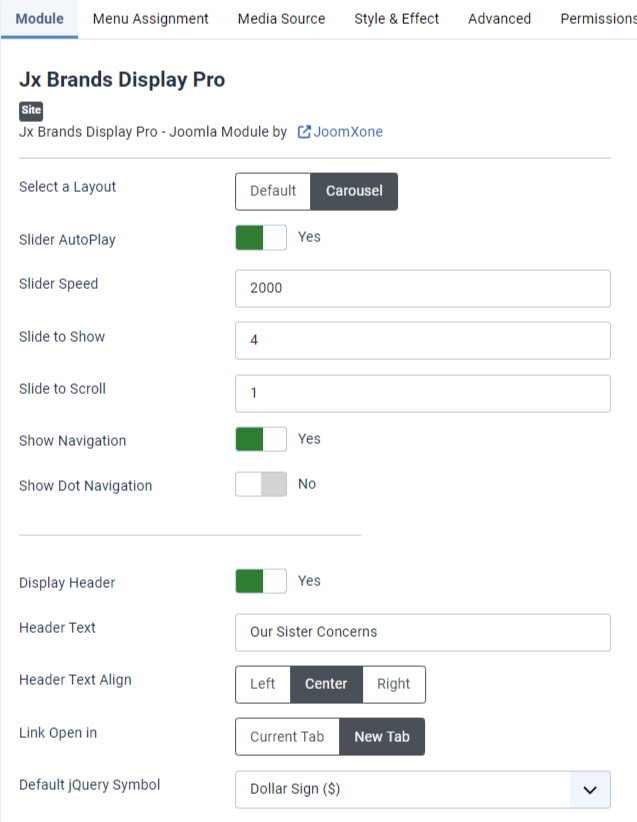
Module Configuration Process:

  • Navigate to Extensions → Modules (Module Manager) in Joomla.
  • Open the plugin and enable it.
  • Review all available configuration options and adjust them as needed.

Module Settings:

  • Layouts: Choose between Default and Carousel layouts.
  • Custom Styles: Apply custom styles to both layouts.
  • Carousel Options:
    • Enable or disable slider auto-play.
    • Adjust slider speed/duration.
    • Set the number of slides to show.
    • Set the number of slides to scroll.
    • Control arrow and DOT navigation.
  • Link Behavior: Open logo/brand links in a new tab or the current window.
  • Header Settings: Display a custom header with title and adjust additional header controls.

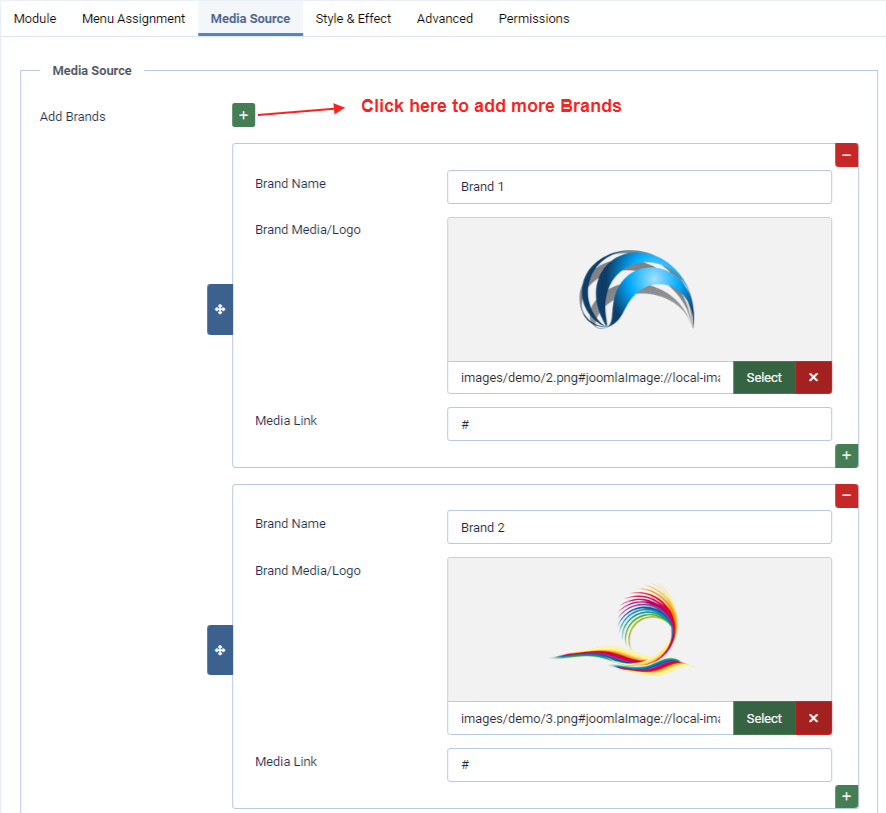
Media Source:

  • Add your brand logos, names, and links here.
  • This is a Pro version, allowing you to add unlimited brands.
  • Upload all logos to your Joomla media/images directory so they can be selected from the module backend.
  • Important Instruction: Ensure all logos are the same size before uploading for a consistent and professional appearance.

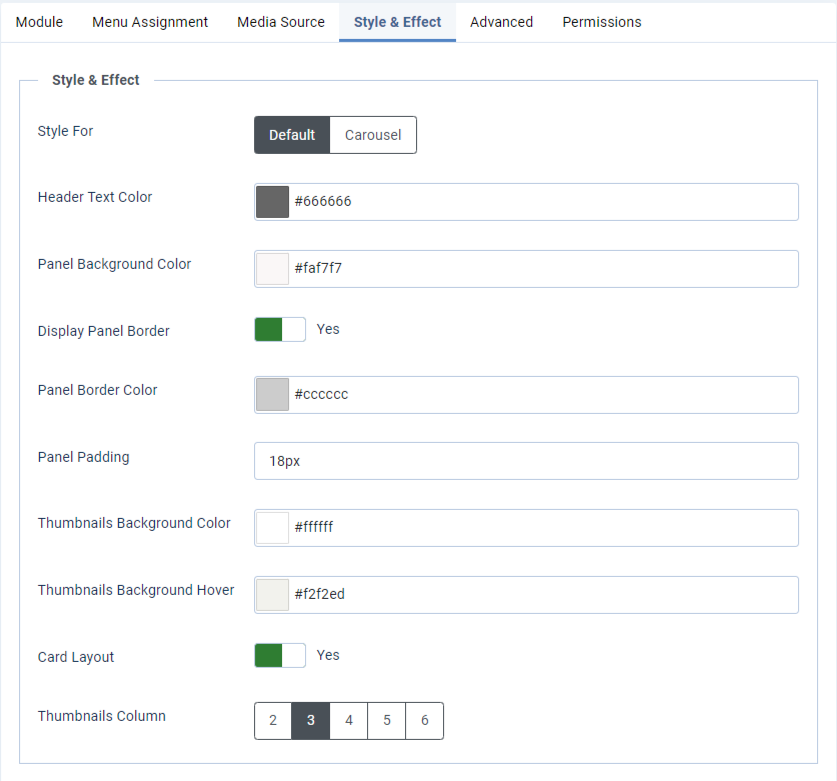
Style & Effect:

  • There are custom style options for both layouts.
  • Change module background, border, padding, and other styling options.
  • Set logo thumbnail background and hover colors.
  • Enable or disable the card layout.
  • Configure grid columns for the grid layout.
  • Set navigation colors for the carousel.
Documentations
Video Documentation

Check the following video documentation of a wide overview of configuration of the plugin.

Documentations
Frontend Mockup

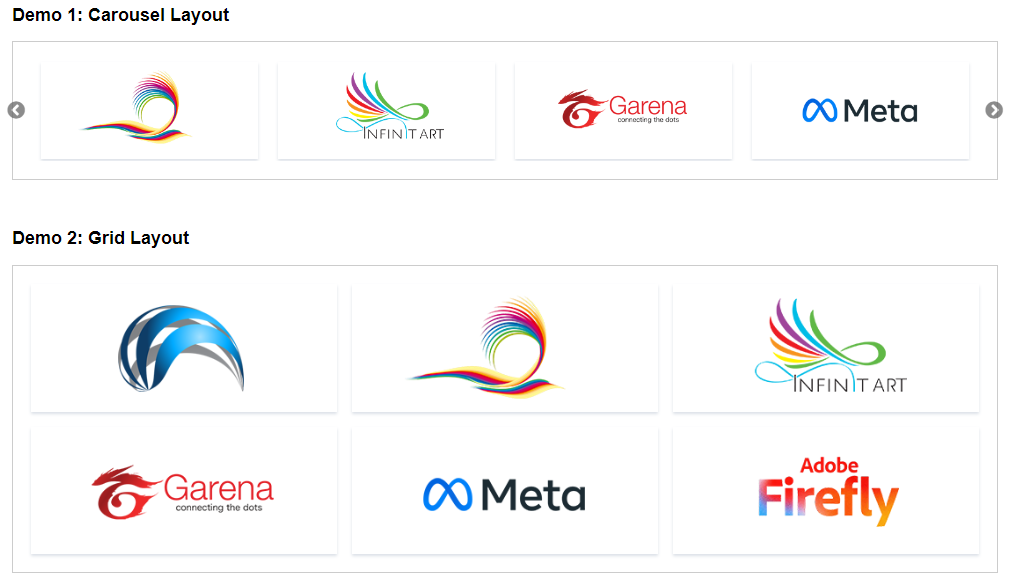
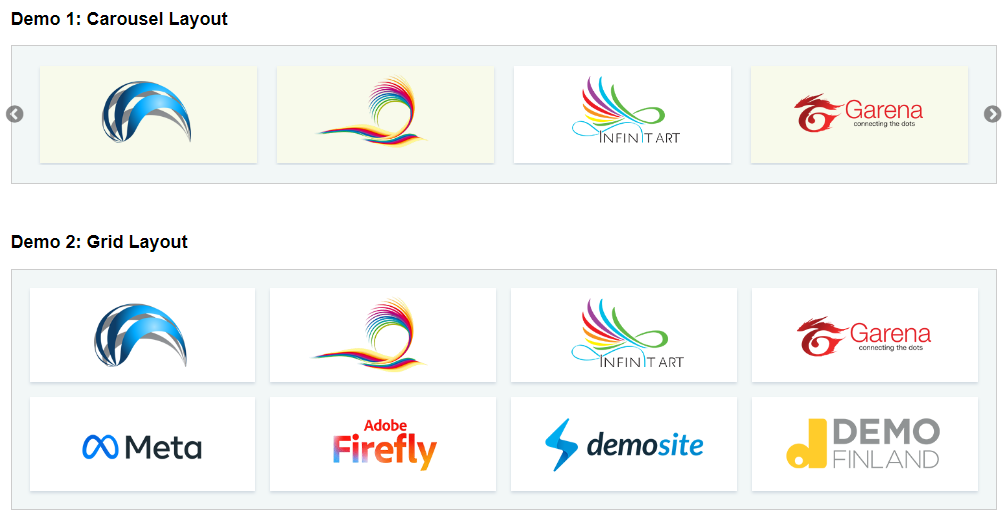
Check the screenshot below. There are two demo layouts available, and you can customize all of these settings from the backend to match your website.

Documentations
Download and Support

Download this Module by going to the extension product page. You will find more details about this module. Please click on Download button below to go to the download page. and Click on Support Button below to navigate to our Support Forum