Jx Brands Display

Documentations
Introduction
Plugin Version: 1.1.1 - last updated version
Jx Brands Display

This is a light weight free Joomla Module can be very useful to display Brand Logos to any Joomla website. This Module is fully responsive to fit any device. There are two layouts of this module – ‘Default’ that can display the logos in grid layout. Another one is ‘Carousel’ displays the logos in a carousel slider. The configuration is very easy – 

  • Download the extension from this page.
  • Install it to your Joomla site.
  • From Joomla Dashboard->Module Manger, open the module and publish it to any module position.
  • Add Logos and required information.
  • You can customize the style from module settings.
Documentations
Installation

This Plugin installation is same as you install other Joomla extensions. Please follow the steps below – 

  • Login to Joomla Administrator Panel
  • From top bar menu, go to Extensions → Manage
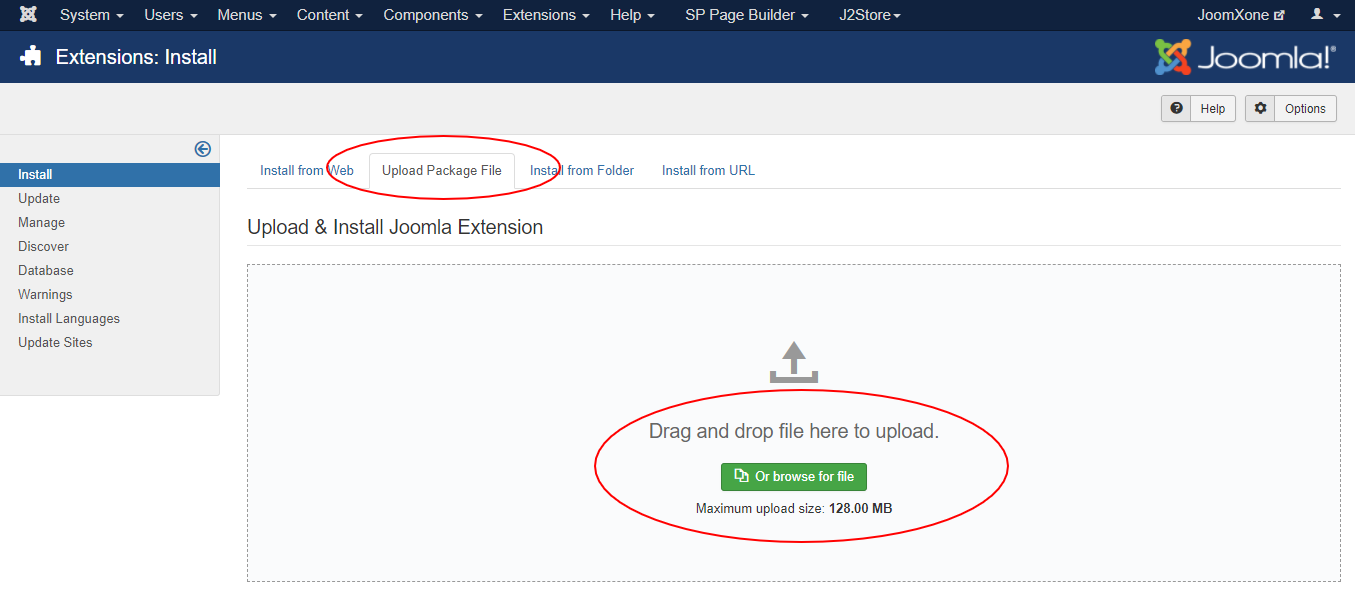
  • Select Upload Package File tab. Now drag and drop the extension zip file. OR you can browse the zip file and upload. That’s it
  • When uploading is done, you will see the success message of the installation. Now you can enable the module from Plugin manager and configure it.

Documentations
Configuration

Module Configuration Process:

  • Navigate to Extensions → Modules (Module Manager) in Joomla.
  • Open the plugin and enable it.
  • Review all available configuration options and adjust them as needed.

Module Settings

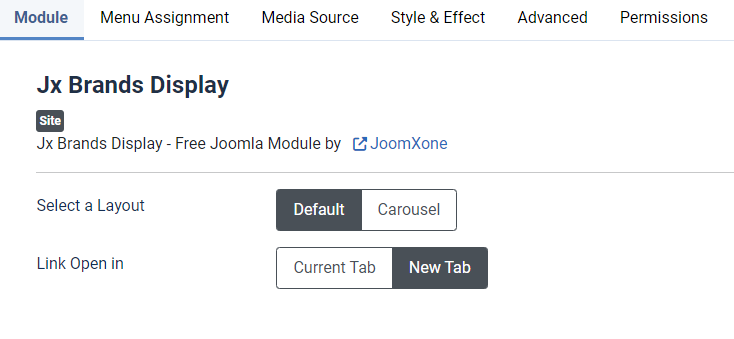
  • Choose between two layouts: Default or Carousel.
  • Apply custom styles to both layouts.
  • Option to open logo/brand links in a new tab or the current window.

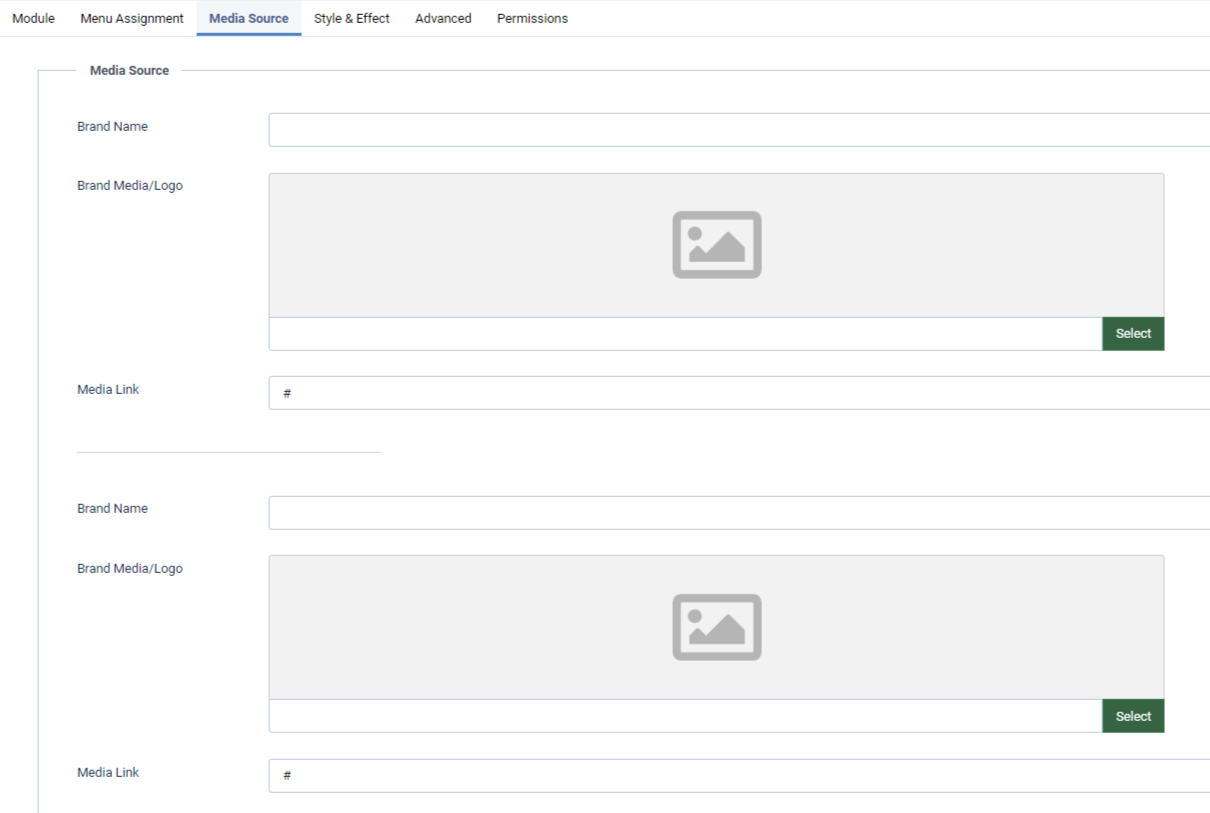
Media Source:

  • Add your brand logos, names, and links here.
  • In the free version, you can add up to 8 brands.
  • Upload all logos to your Joomla media/images directory so they can be selected from the module backend.
  • Important Instruction: Ensure all logos are the same size before uploading for a neat and consistent appearance.

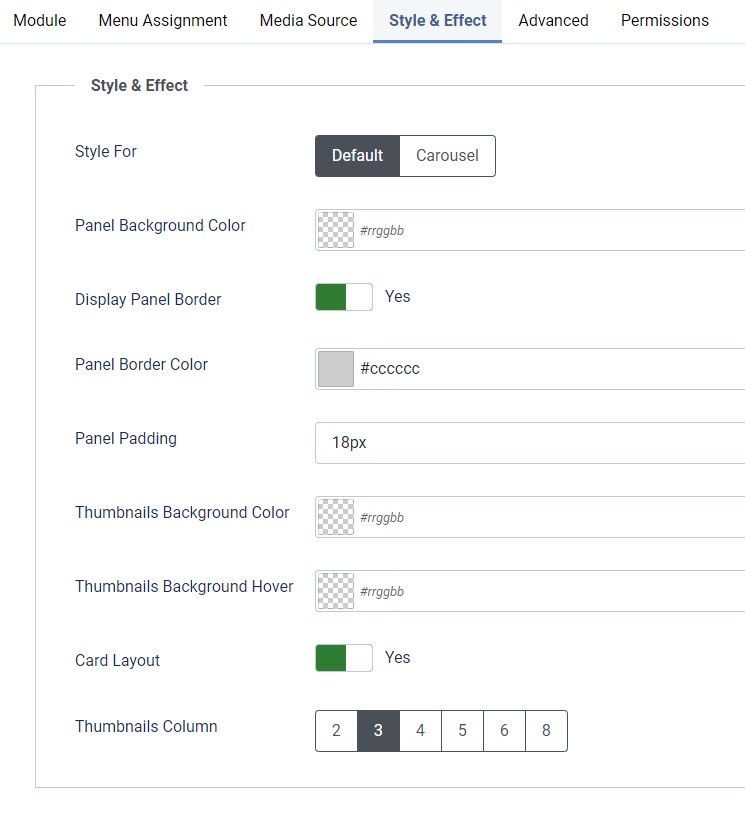
Style & Effect:

  • Customize styles for both layouts.
  • Modify module background, border, padding, and other styling options.
  • Set logo thumbnail background and hover colors.
  • Enable or disable the card layout.
  • Set grid columns for the grid layout.
  • Adjust carousel navigation colors.
Documentations
Video Documentation

Check the following video documentation of a wide overview of configuration of the plugin.

Documentations
Frontend Mockup

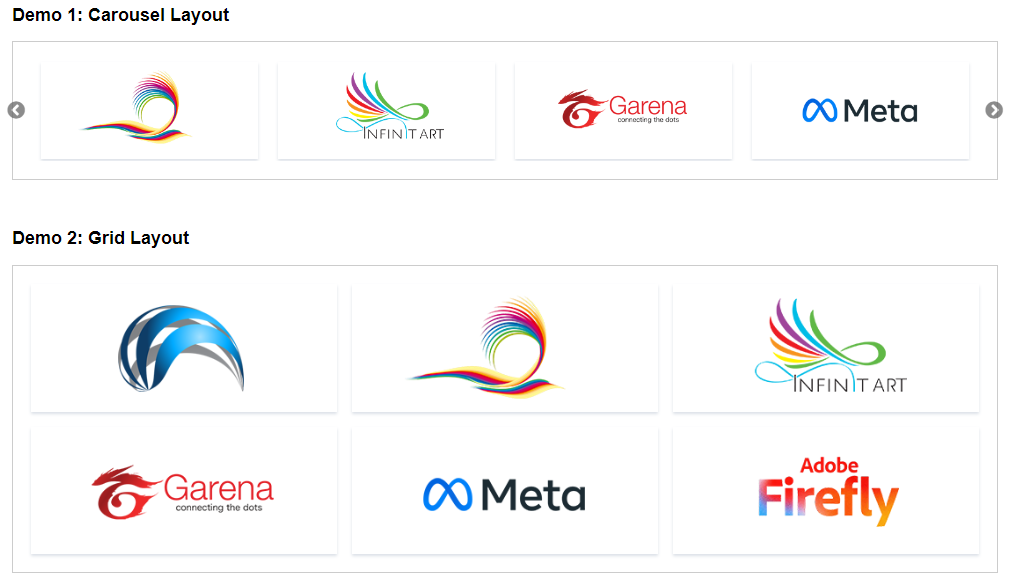
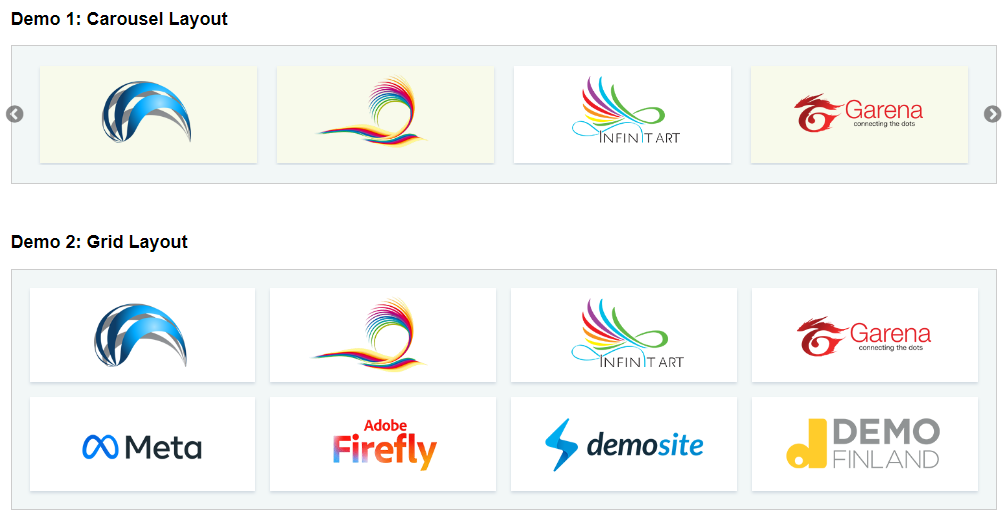
Check the screenshot below. There are two demo layouts available, and you can customize all of these settings from the backend to match your website.

Documentations
Download and Support

Download this Module by going to the extension product page. You will find more details about this module. Please click on Download button below to go to the download page. and Click on Support Button below to navigate to our Support Forum

Jx Ajax Contact

Documentations
Introduction
Plugin Version: 2.1.1 - last updated version
Jx Ajax Contact

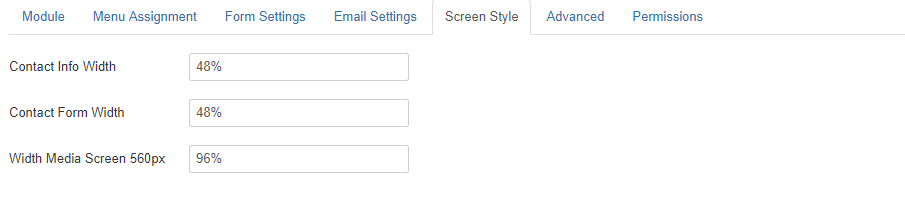
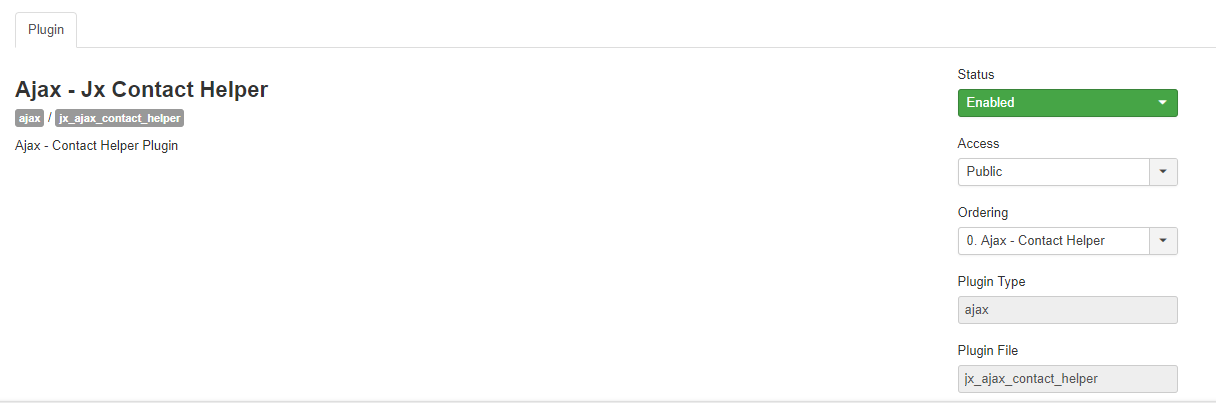
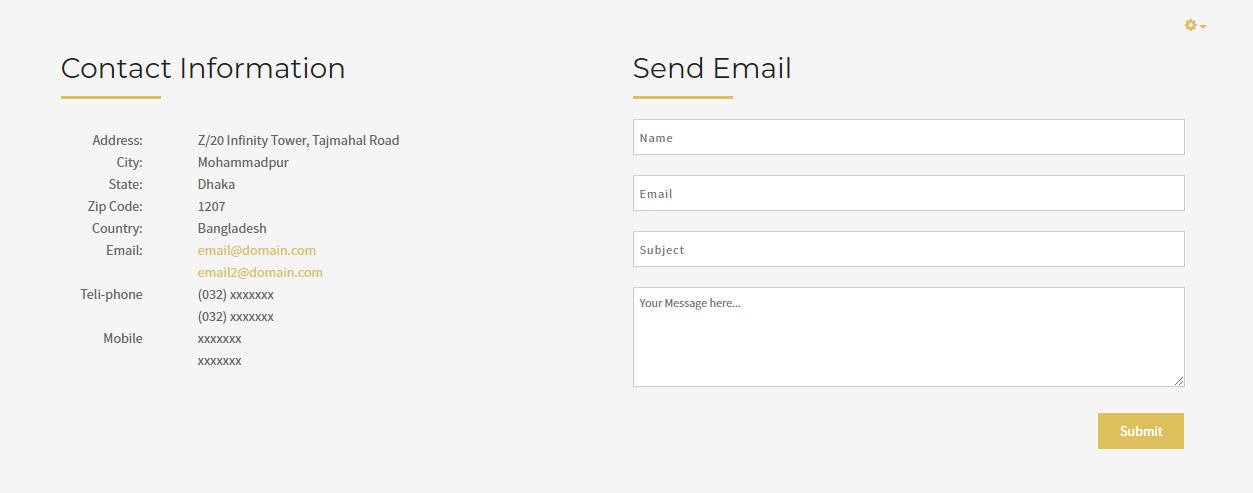
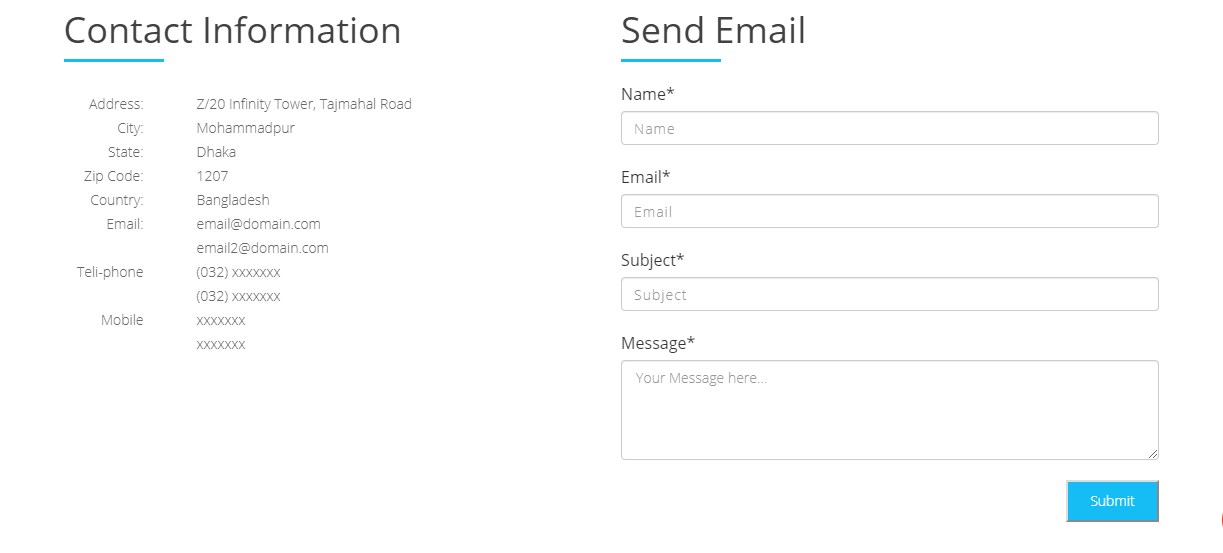
This is an awesome free Joomla extension to be used as Joomla contacts. Both contact forms and contact information can be displayed on website. This is an extension package containing a Plugin and a Module. When you will install the package, both extensions will be installed. First, enable the Plugin and then publish the Module. Contant Form and Information Options are listed at Module back end. There are several color themes you can choose any. There are custom settings as well for your own styling.

Documentations
Installation

This Plugin installation is same as you install other Joomla extensions. Please follow the steps below – 

  • Login to Joomla Administrator Panel
  • From top bar menu, go to Extensions → Manage
  • Select Upload Package File tab. Now drag and drop the extension zip file. OR you can browse the zip file and upload. That’s it
  • When uploading is done, you will see the success message of the installation. Now you can enable the module from Plugin manager and configure it.
Documentations
Configuration

Module Configuration Process:

  • Go to Extensions → Modules (Module Manager) in Joomla.
  • Open the module and enable it.
  • Review all available configuration options and adjust them as needed.

Module Settings:

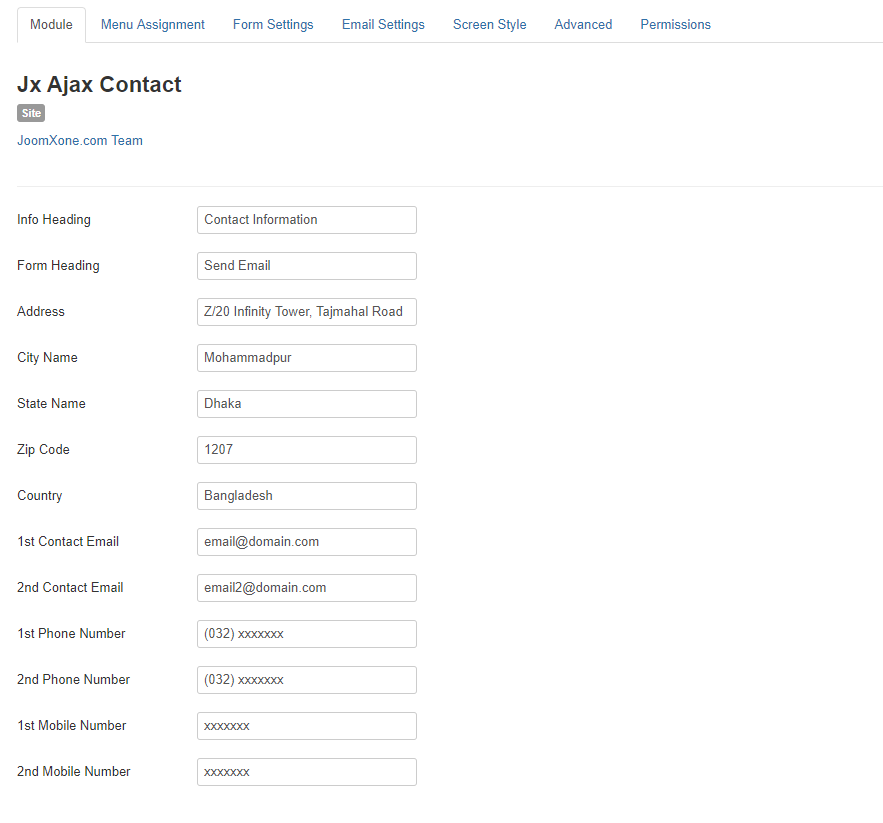
  • Add a form title or contact heading.
  • Enter your company contact details (country, state, city, office address, etc.).
  • Provide contact email address and phone numbers.

Form Settings and Styling:

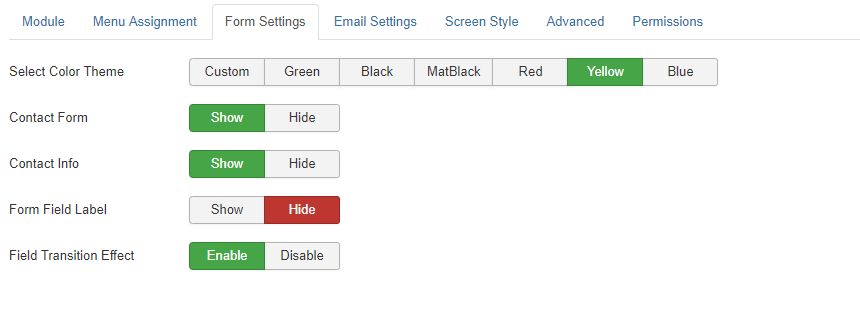
  • Choose a theme from multiple options, or select custom settings to create your own style.
  • Show or hide the contact form, contact information, and form labels.
  • Enable or disable form transition effects.

Email Configuration:

  • By default this extension uses PHP Mailer. Even if you use SMTP mailer at your Core Joomla Settings, It will work by PHP mailer as well.
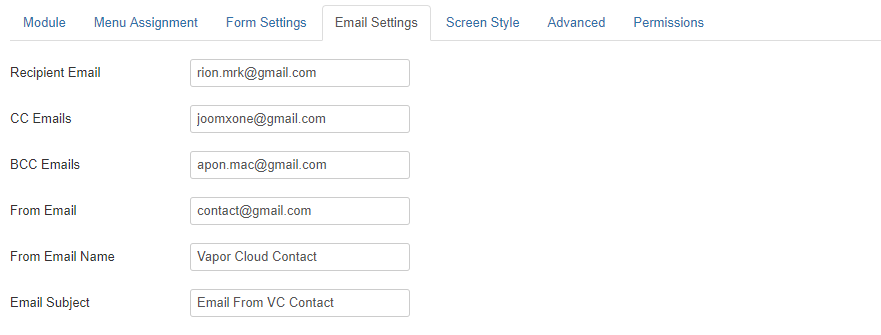
  • Configure Recipient, CC, and BCC email addresses.
  • Set the From Name, From Email, and Email Subject.

Write Your Own Content:

  • Instead of using dynamic Joomla content, you can create your own custom content for the slider.
  • Add a title, description, and image, along with a “Read More” link.
  • Your custom content will then be displayed directly in the slider.

Plugin Settings:

  • This plugin does not require any specific configuration.
  • It works in the background to send emails via Ajax requests.
  • Make sure the plugin is enabled before or after configuring the module for proper functionality.
Documentations
Video Documentation

Check the following video documentation of a wide overview of configuration of the plugin.

Documentations
Frontend Mockup
Documentations
Download and Support

Download this Module by going to the extension product page. You will find more details about this module. Please click on Download button below to go to the download page. and Click on Support Button below to navigate to our Support Forum

Floating Action Buttons – Joomla Plugin

Documentations
Introduction
Plugin Version: 1.1.1 - last updated version
Floating Action Buttons - Joomla Plugin

This is an Amazing Joomla System Plugin that displays an floating social action action button at you Joomla site. A floating icon will be displayed at web page, on mouse hover or on mouse click, the social icons will be expanded that can redirect your visitors at your social media sites. Those social media links can be set at the plugin back end.   The most amazing thing is you can customize the positions of the button appearance and at your page. (At Live preview page Please see at the bottom right corner).

Documentations
Installation

This Plugin installation is same as you install other Joomla extensions. Please follow the steps below – 

  • Login to Joomla Administrator Panel
  • From top bar menu, go to Extensions → Manage
  • Select Upload Package File tab. Now drag and drop the extension zip file. OR you can browse the zip file and upload. That’s it
  • When uploading is done, you will see the success message of the installation. Now you can enable the module from Plugin manager and configure it.
Documentations
Configuration

Plugin Configuration Process – 

  • Navigate to Extensions → Plugins (Plugin Manager) in Joomla
  • Open the desired plugin and enable it
  • Review all available configuration options carefully
  • Adjust settings based on your website requirements
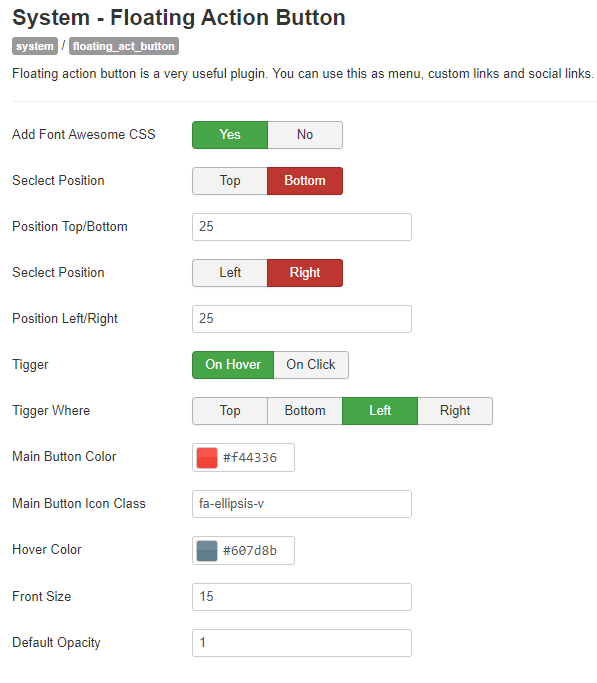
  • Display social icons across all pages of your website
  • Easily configure custom social media links from the backend
  • Option to enable or disable Font Awesome CSS
  • Flexible display positioning with support for custom placement values
  • Advanced trigger options — show icons on hover or click
  • Set custom trigger positions for better user interaction
  • Fully customizable button styles, including support for custom icon classes
  • Typography customization options for better visual control
  • Supports major platforms like Facebook, Twitter, Google+, Pinterest, and more.

Button Settings:

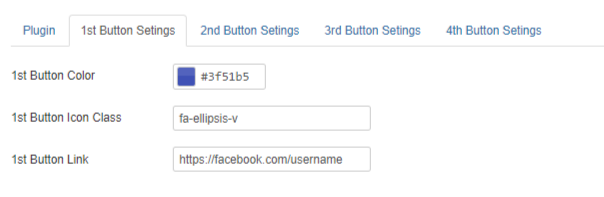
  • Configure up to 4 different button settings
  • Fully customizable button colors to match your design
  • Freedom to use any custom button class for styling flexibility
  • Easy-to-use fields to assign button links
Documentations
Video Documentation

Check the following video documentation of a wide overview of configuration of the plugin.

Documentations
Frontend Mockup

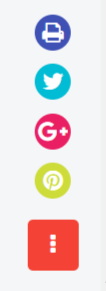
Please check the following screenshot. The button will be displaying like this. Button width-height and orientation  can be controlled from back end options –

Documentations
Download and Support

Download this Module by going to the extension product page. You will find more details about this module. Please click on Download button below to go to the download page. and Click on Support Button below to navigate to our Support Forum

Ajax Voice Search

Documentations
Introduction
Plugin Version: 1.2.1 - last updated version
Ajax Voice Search

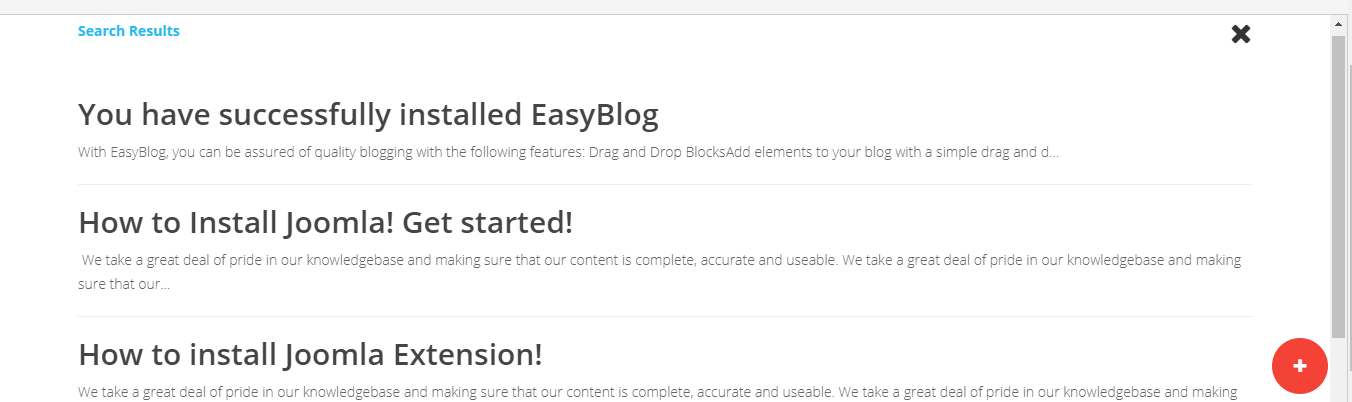
This is an Amazing Joomla Extension that searches Joomla Content/Articles with your voice command. The extension package includes a Plugin and a Module. Once you install the package, both extensions will be installed. At first, enable the plugin and then publish the module anywhere you want.  The Plugin has options to select which component it will search. The module has style options and Search Types. It has text ajax search option as well besides the voice search, You have to choose it in module options The search result shows in two layouts – On the Fly and General. You can choose any of one in the module backend. (Make sure your device has an Internet connection and your domain has https://).

Supported Components: Joomla Artcles, Virtumart, K2, Zoo, EasyBlog

The search works with Title Matching of the content.

Documentations
Installation

This Plugin installation is same as you install other Joomla extensions. Please follow the steps below – 

  • Login to Joomla Administrator Panel
  • From top bar menu, go to Extensions → Manage
  • Select Upload Package File tab. Now drag and drop the extension zip file. OR you can browse the zip file and upload. That’s it
  • When uploading is done, you will see the success message of the installation. Now you can enable the module from Plugin manager and configure it.
Documentations
Configuration

Module Configuration Process:

  • Go to Extensions → Modules (Module Manager) in Joomla.
  • Open the module and enable it.
  • Review all available configuration options and adjust them as needed.

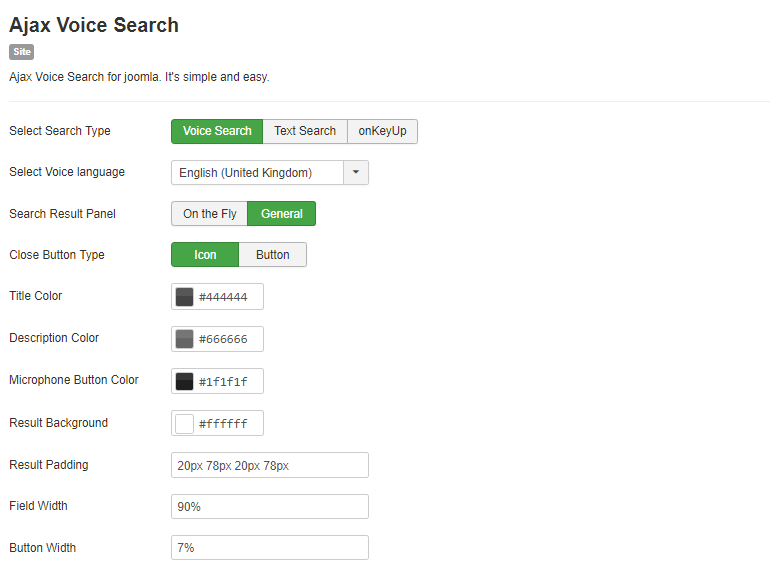
Ajax Voice Search:

  • Simple and easy to use for voice-based search functionality.
  • Select your preferred search type from the available options.
  • Choose your voice language (e.g., English – UK).
  • Select a search result panel from the provided options.
  • Choose your desired button type.
  • Customize the title, description, microphone button, and result background colors.
  • Adjust padding for the search result area.
  • Set the field width to match your page layout.
  • Customize the button width as needed.
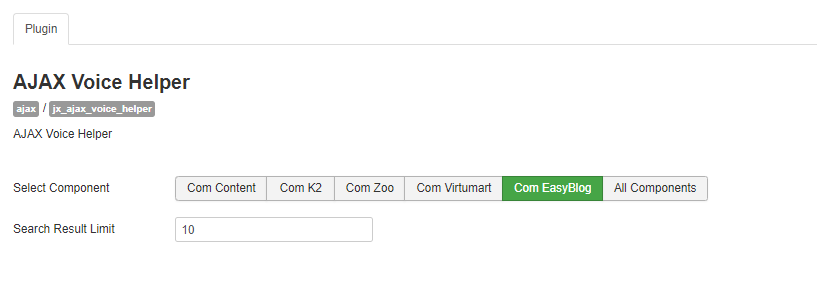
  • Ajax Voice Helper:

    • Select components from various available options—you can choose one or multiple components as needed.
    • Limit the number of search results using the search result limit option.
Documentations
Video Documentation

Check the following video documentation of a wide overview of configuration of the plugin.

Documentations
Frontend Mockup
Documentations
Download and Support

Download this Module by going to the extension product page. You will find more details about this module. Please click on Download button below to go to the download page. and Click on Support Button below to navigate to our Support Forum