Jx YouTube Channel Viewer
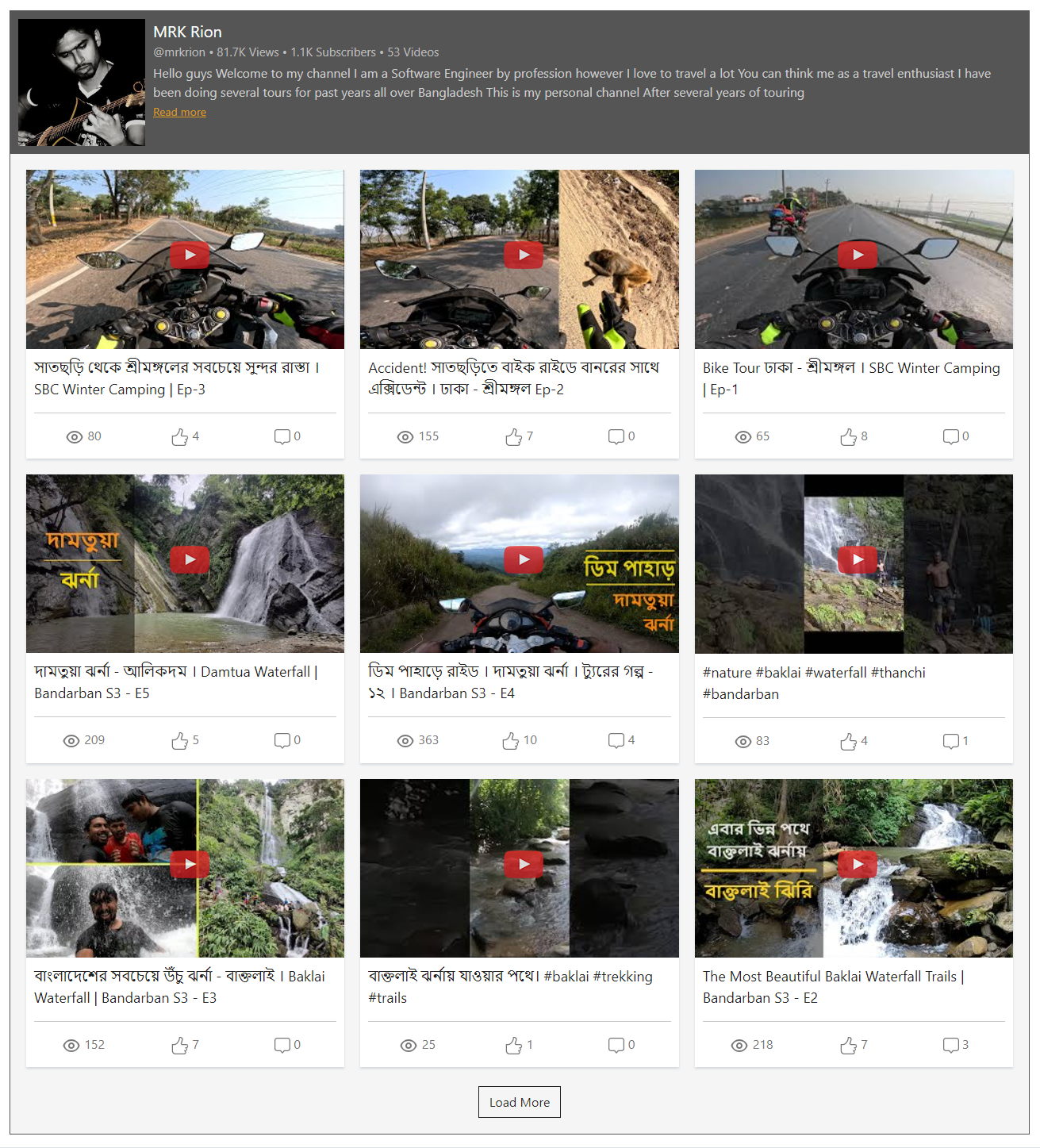
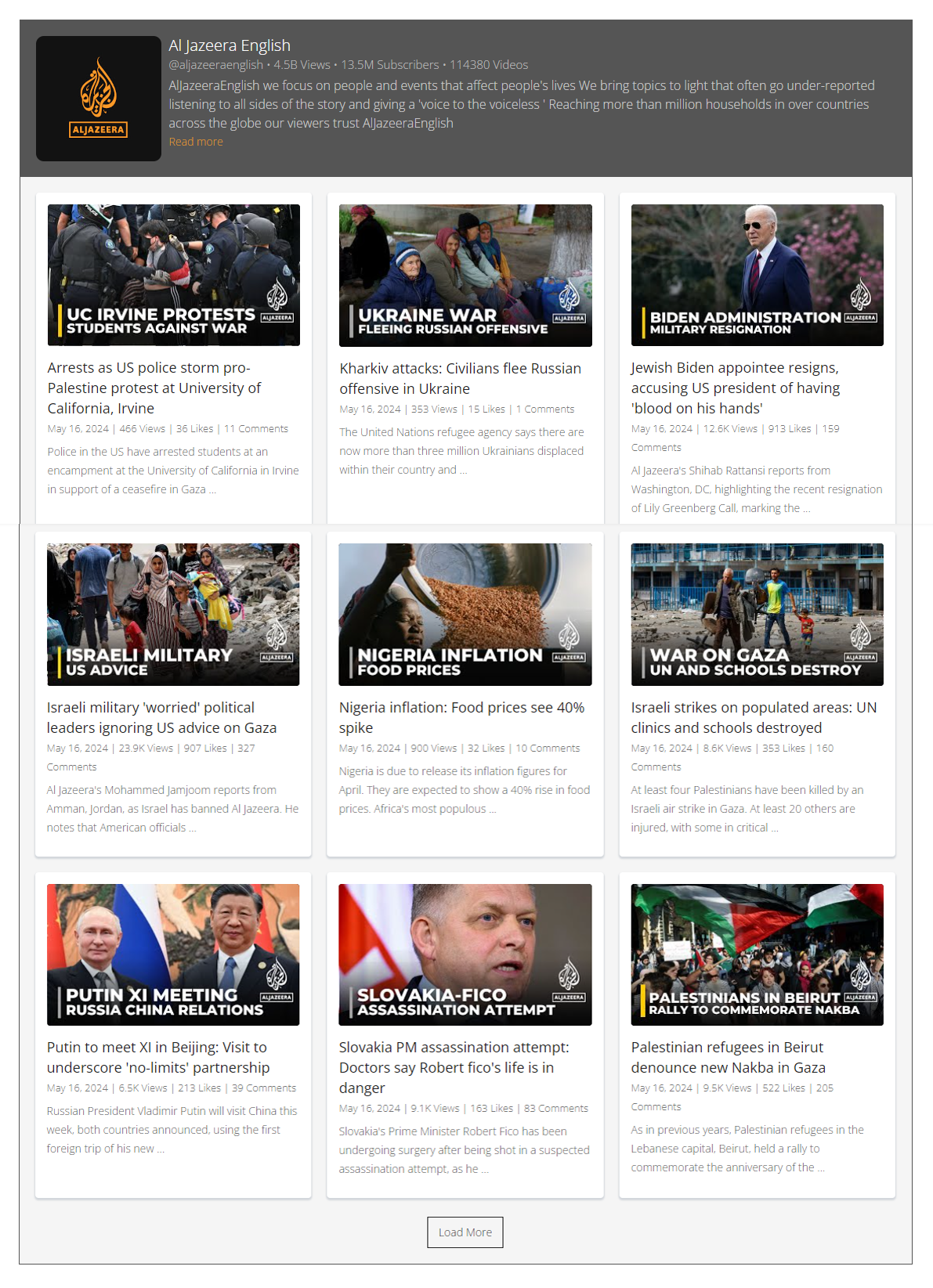
This Joomla module is designed to seamlessly display videos from a YouTube channel on your website. It is lightweight, efficiently coded, and leverages the YouTube Data API to fetch and present video content dynamically.
The module offers a straightforward configuration process—requiring only a YouTube Channel ID and a Google API Key. For convenience, a default test API key is included, allowing you to use the module without setting up your own key, although using a personal API key is recommended for optimal reliability.
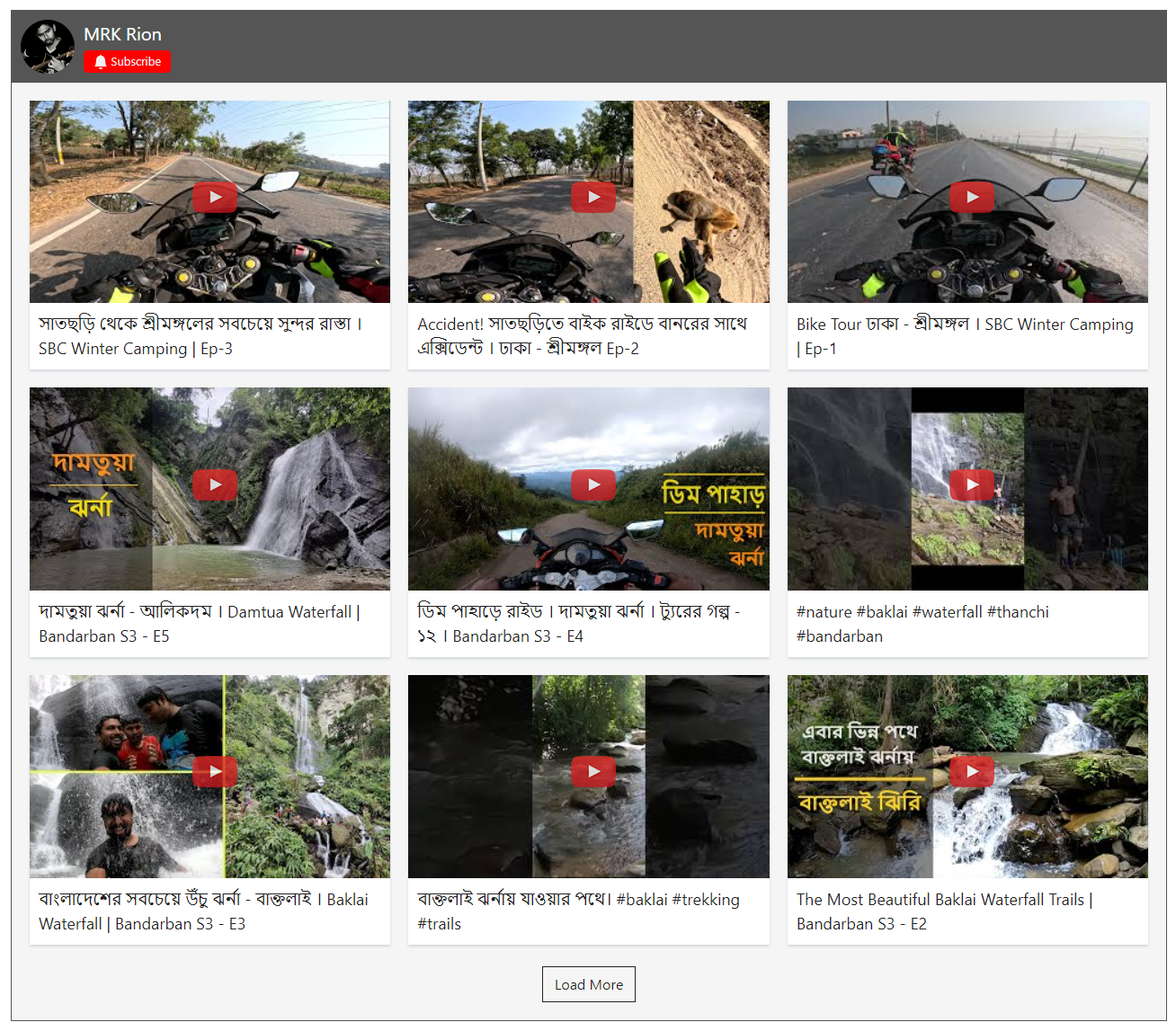
It includes four distinct, fully customizable layouts, enabling you to tailor the appearance to match your website’s design. Additionally, the module features a configurable carousel slider, allowing you to present videos in an engaging, gallery-style format.
Configuration Steps:
- Install and publish the module in your desired module position.
- Set the Google API Key (use the provided test key or your own).
- Enter the YouTube Channel ID from which videos will be displayed.
- Save the module and review it on the frontend.
Beyond these basics, the module provides a wide range of settings and styling options in the backend, giving you full control over functionality and presentation.

Core Features
Display YouTube videos from any channel you want.
The module uses Google YouTube Data API Service and API Key
It has a built-in Test API key to run the module. You can use that too.
The extension has 4-diffeernt layouts including a carousel slider. You can use any one of them.
All given layouts are fully customizable, You can customize the styles and parameters as your own.
You have control settings, when you want the API to call the latest feeds in a regular schedule.
If you set the API calling schedule, It will never run out of API Data limit as long as google provides service.
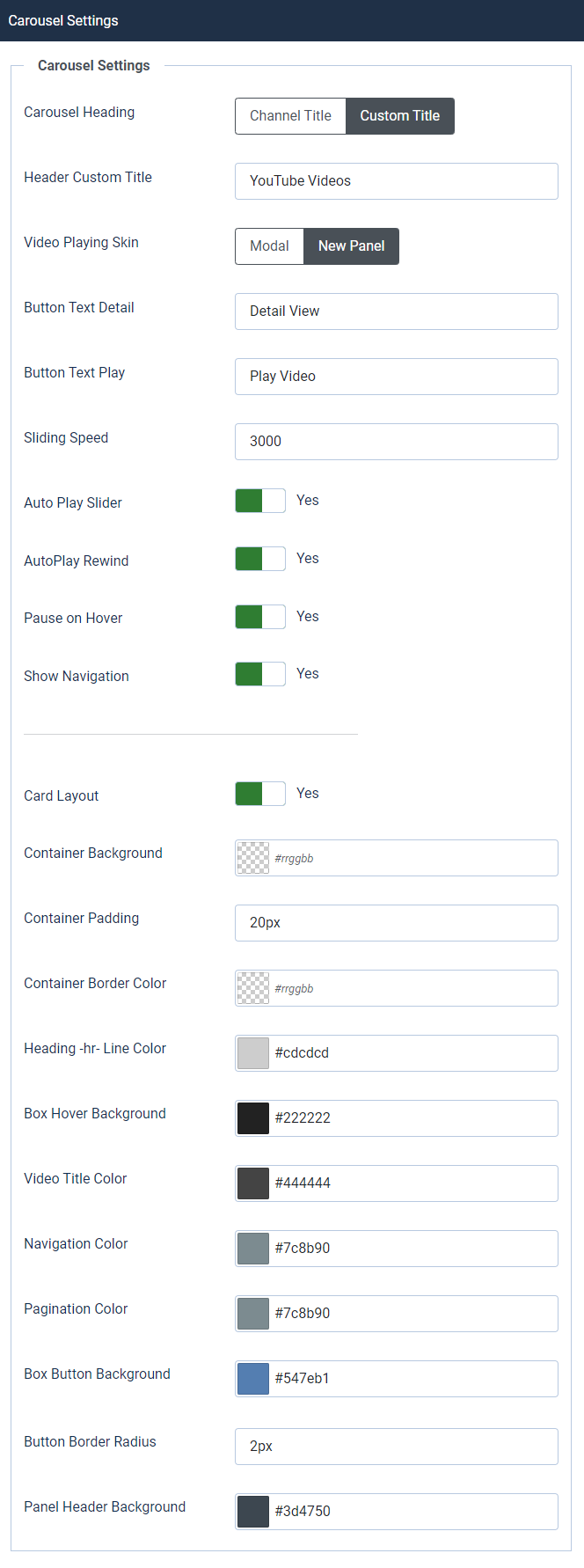
One of the layouts is ‘Carosuel Slider’. It has also customizable settings at the module settings.
All the themes/layouts are based on Grid, You have control to show the number of Columns.
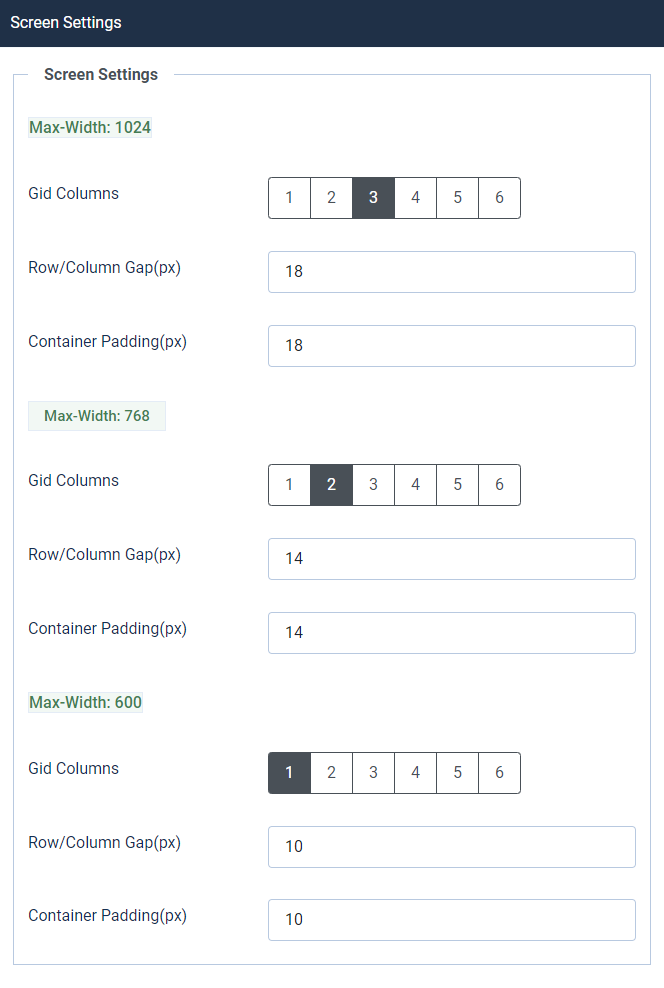
The extension is fully responsive by default to fit any device screens. Additionally, It has control settings for different screen size.
It has several more control settings i.e. – Loadmore Button, Play Icons, Modal View, Inline View, 3-Different Headers, YouTube Channel Info & Statistics etc. Please check the module back-end/Admin Screens.
FAQ & Version History
Version: 1.0.0
– Published:Â May 16, 2024
– Supports Joomla 5x, J4x & J3x
– PHP Version Support: PHP 6.5Â – 8.x
– ***Initial Release
What Joomla versions does it support?
It supports Joomla 3x, J4x, J5x including latest Joomla. It does not support Joomla 2.5
How can I configure the extension?
The configutaion is very easy-
- At first Install the extension and publish the module at any module position.
- Set YouTube Channel ID & Google API Key.
- You can choose ‘Test Key’ too, to check the module. The module will work with the ‘Test key’.
- We recommand to use your own key
- That’s It, save the module and see the front-end.
- There are layouts and other features you can check them too.
When The API pulls the latest feed?
In the module back-end there is an option ‘Call API in.’, It’s API calling Schedule. There are 5-options –Â
- Call API- in every 12 hours
- Call API – once a day
- Call API – in 2 days
- Call API – in 3 days
- Call API – in one week
You can chosoe any one of them, It will automatically pull latest YouTube feed as per the schedule.
Is Google API Key required to use the module?
Initially No, There is a Test key given for your testing, and you can use that for a while too. The extension uses Google API Key, That’s why the key is needed. However we recommand to use your own key. See: How to create Google API key for YouTube videos.
How to create Google API Key for YouTube videos?
There are several documentation available to create APO key. You can check this documentation too –Â How to Create Google API Key for YouTube
Need custom development?
JoomXone develops custom Joomla extensions as well as Joomla website. Feel Free to contact us with your thoughts.
How can I get support?
You can get support by posting at our support forum. Please post your queries for this extension by clicking here. Before posting a new query, please search at our forum. you may get solutions of simillar problem.
Admin Screens and Features Breakdown
Module Settings
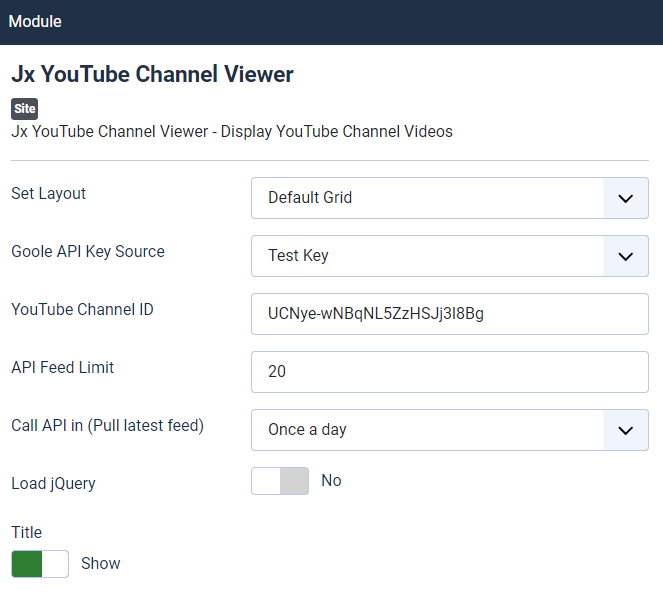
- Layouts: Choose from four available layouts — Default Grid, Blog, Flat, and Carousel — to match your website design.
- API Key: A default test API key is included to help you quickly verify functionality. However, using your own Google API key is strongly recommended.
- YouTube Channel ID: Enter the channel ID of the YouTube account from which you want to display videos.
- API Feed Limit: Define the number of videos to be fetched per request. The default value is 20, but it can be adjusted as needed.
- API Calling Schedule: Set how frequently the module should fetch the latest videos from the YouTube API.
- Load jQuery Library: Optional setting. Disable this if your website already includes jQuery and the module operates correctly without it.
Global Settings
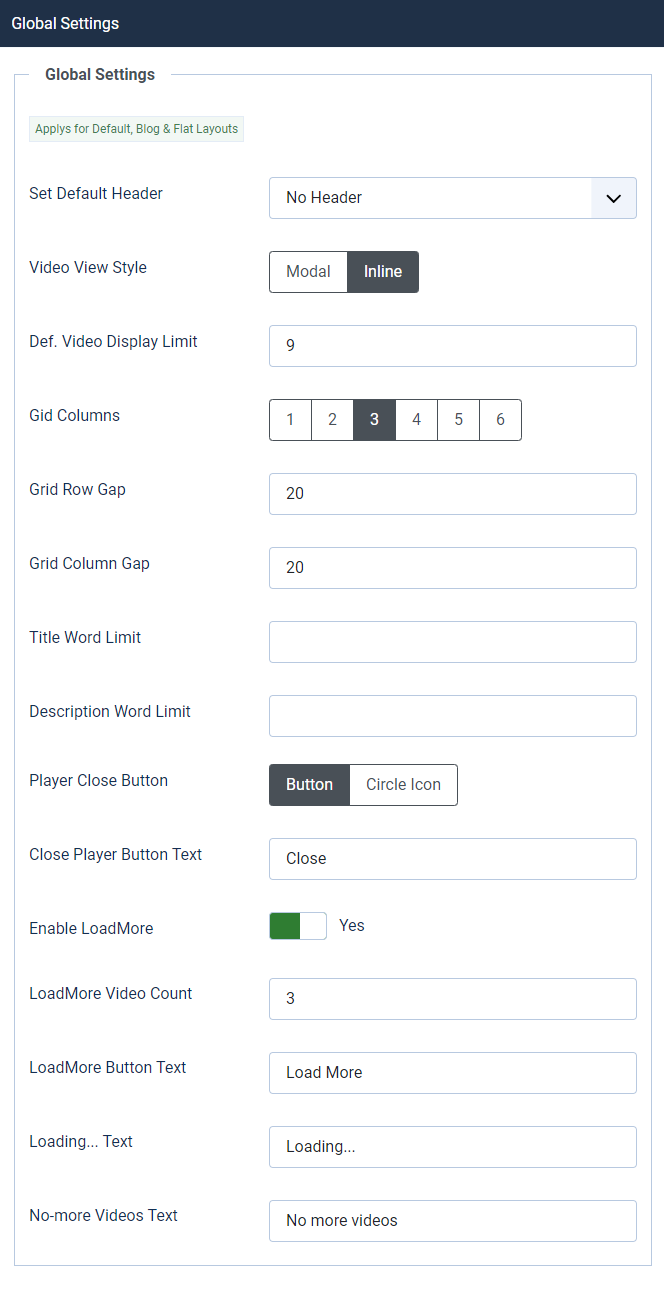
- Header Layouts: Choose from three header styles — Simple, Slim, and Extended. You can also select No Header if you prefer to hide the header section completely.
- Video Play Mode: Select how videos should open using either Modal or Inline playback mode.
- Default Video Limit: Define the default number of videos to display on the frontend.
- Grid Columns: Configure the number of columns used to display videos within the grid layout.
- Grid & Row Spacing: Customize the spacing between grid items by adjusting column and row gaps.
- Title & Description Word Limit: Set custom word limits for video titles and descriptions. Leave these fields empty to display the full text without limitation.
- Video Player Close Button: Choose the preferred close button style for the video player and optionally define custom close button text.
- Load More Feature: Enable the Load More option to display additional videos dynamically. You can also customize the button text and styling to match your website design.
Layout Settings
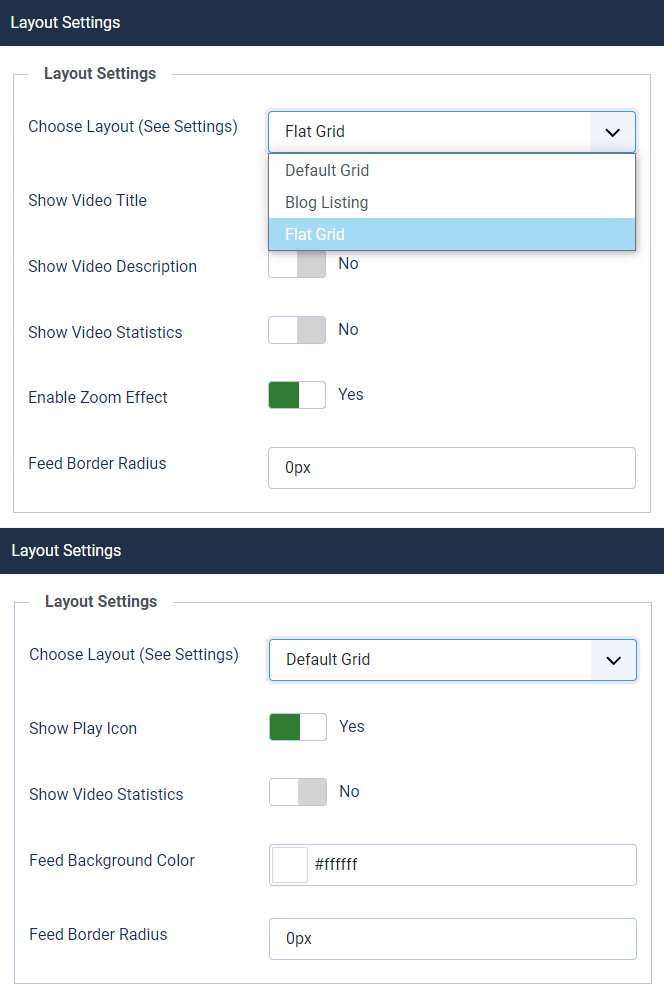
- Layout-Specific Settings: Select a layout to access and configure its dedicated customization options. Each layout includes its own unique settings and styling controls.
- Video Title Display: Enable or disable the visibility of video titles.
- Video Description Display: Show or hide video descriptions based on your preference.
- Video Statistics Information: Control the visibility of video statistics such as views and other related information.
- Video Play Icon: Enable or disable the video play icon overlay. This feature is available only in the Default Grid layout.
- Feed Background Color: Customize the background color of the video feed or content box.
- Border Radius: Set custom border radius values to create rounded corners for video boxes and feed items.
- Zoom Effect: Enable or disable the hover zoom animation effect. This feature is available exclusively in the Flat layout.
Header Settings
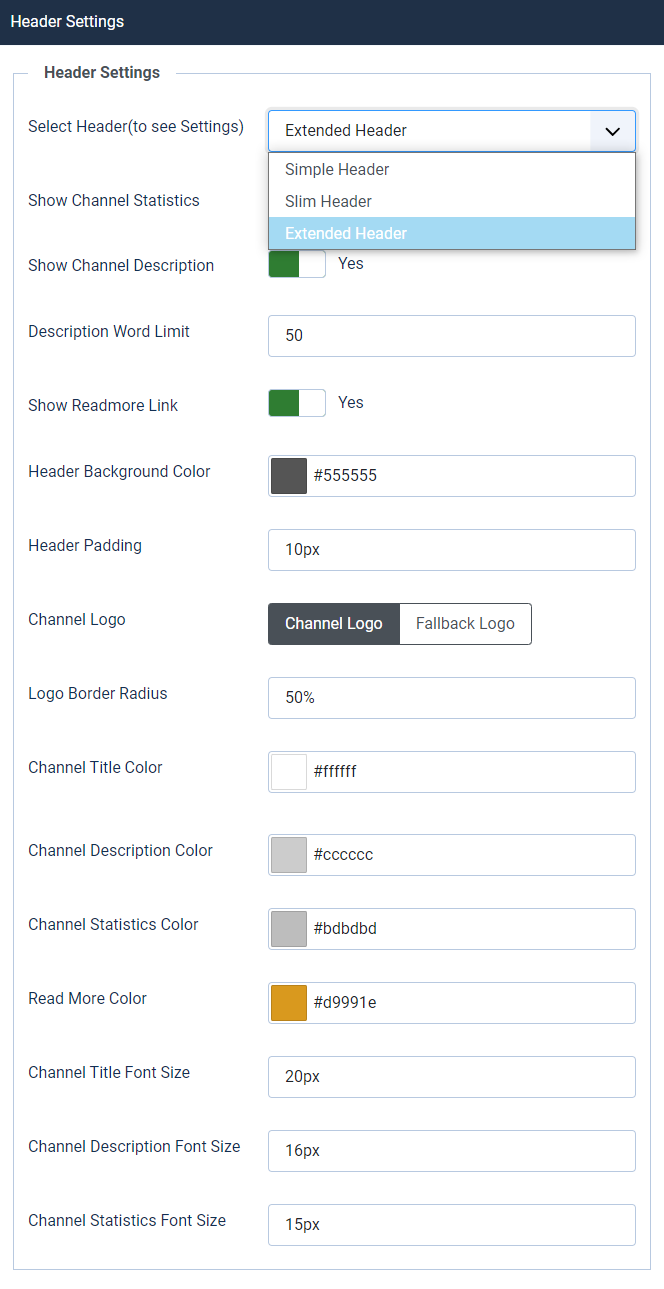
- Header-Specific Settings: Select a header style to access its dedicated customization options. Each header layout includes its own configurable settings.
- Channel Statistics Display: Enable or disable the visibility of channel statistics information.
- Channel Description Display: Show or hide the channel description section.
- Description Word Limit: Define a custom word limit for the channel description. Leave this field empty to display the full description without restriction.
- Read More Link: Enable or disable the Read More link for the channel description.
- Header Background Color: Customize the background color of the module header area.
- Header Padding: Adjust the padding settings to control spacing within the header section.
- Channel Logo Options: Choose how the channel logo should be displayed. You can either use the YouTube channel logo retrieved automatically via API or select a custom fallback logo from your media gallery.
- Logo Border Radius: Apply custom border radius values to create rounded corners for the channel logo.
- Text & Element Colors: Customize colors for the channel title, description, read more link, and statistics information.
- Typography Settings: Set custom font sizes for the channel title, description, and statistics information to better match your website design.
Carousel Slider Settings
The following settings are applied to all layouts except the Carousel Slider layout. The Carousel Slider includes its own dedicated customization options under the Carousel Settings tab.
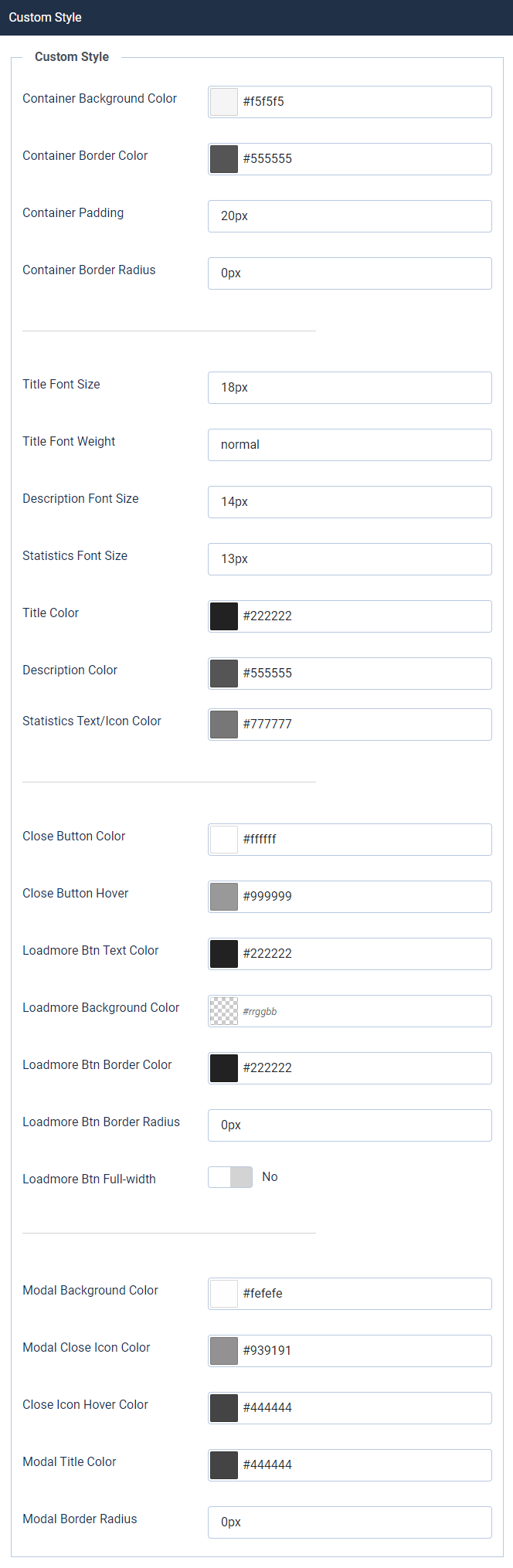
- Container Styling: Customize the module container appearance by adjusting the background color, border color, padding, and border radius.
- Typography & Colors: Configure font styles, typography settings, and colors for video titles, descriptions, and statistics information.
- Button Styling: Customize the appearance of the Close Button and Load More Button, including colors, hover effects, and border radius.
- Modal Styling: Personalize the modal window design by setting the background color, title color, close button color, and modal border radius.
Carousel Slider Settings
The following settings apply to all layouts except the Carousel Slider layout. The Carousel Slider includes its own dedicated configuration options under the Carousel Settings tab.
- Container Styling: Customize the module container by adjusting the background color, border color, padding, and border radius.
- Typography & Color Settings: Configure font typography and colors for video titles, descriptions, and statistics information.
- Button Customization: Personalize the appearance of the Close Button and Load More Button, including colors, hover effects, and border radius.
- Modal Window Styling: Customize the modal window design, including background color, title color, close button color, and border radius.
Media Screen Settings
The following settings apply to all layouts except the Carousel Slider layout. The Carousel Slider includes its own responsive configuration options under the Carousel Settings tab.
- Responsive Breakpoints: The module provides three major responsive screen controls — 1024px (iPad Pro), 768px (iPad Mini), and 600px (Mobile Devices).
- Grid Columns: Configure the number of grid columns to be displayed for different screen sizes, allowing optimized layouts across desktops, tablets, and mobile devices.
- Grid Spacing: Customize row and column gaps independently for each screen size to maintain proper spacing and alignment.
- Container Padding & Spacing: Adjust container padding and overall spacing settings for different device resolutions to ensure a responsive and visually balanced layout.